What is Tradovate? #
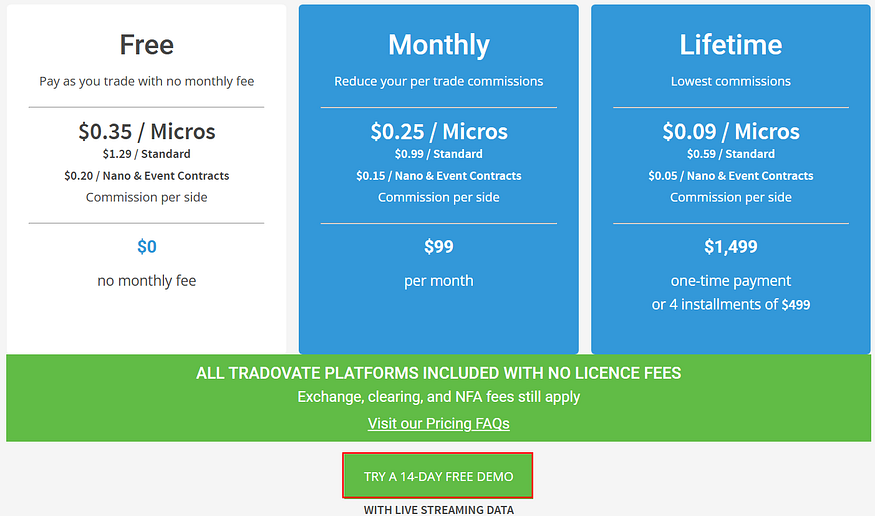
To open a Tradovate demo account, sign up free with no credit card required and get a 14-day trial with $50,000 in virtual funds and real-time market data. Use it to practice order entry, test strategies, and try automation before going live. Once the trial expires, demo login is disabled, so you’ll need to fund a live account or start a new trial to keep practicing.
Ready to automate this with PickMyTrade? Connect TradingView to Tradovate and start executing trades automatically — no coding required.
Why Choose Tradovate’s Demo Account? #
- Zero Risk Practice: Trade with virtual funds, avoiding the risk of real money losses.
- Real-time Market Data: Get accurate market quotes and information, ensuring a realistic trading environment.
- Feature-rich Trading Platform: Supports desktop, web, and mobile platforms for trading anywhere, anytime.
- Test Your Trading Strategies: Verify and refine your strategies before going live, improving your success rate.
Tradovate Demo at a Glance #
| Feature | Details |
|---|---|
| Cost | Free, no credit card |
| Trial length | 14 days |
| Starting balance | $50,000 virtual (adjustable via support) |
| Market data | Real-time during trial |
| After expiry | Demo login disabled; fund a live account (includes unlimited sim) or start a new trial |
| Automation | Works with PickMyTrade for TradingView automation |
How Long Does the Tradovate Demo Last (and Can You Reset It)? #
The free Tradovate demo lasts 14 days from registration. After that window, demo access expires — you can no longer log in to place simulated trades or view live data through the demo, and the trial itself can’t be reset or extended. Tradovate does let you adjust your simulated account balance during the trial (useful for restarting practice after a drawdown or mirroring a specific account size), which is different from extending the trial period itself. Once your 14 days are up, your two options are to open and fund a live Tradovate account — which includes unlimited simulated trading at no extra cost — or register a new trial, which typically works best with a different email address.
Practice Automated Trading on Your Tradovate Demo with PickMyTrade #
PickMyTrade connects to a Tradovate demo (simulation) account exactly the same way it connects to a live account, which makes the demo the zero-risk way to validate an automation setup before going live or starting a prop-firm evaluation.
- Open your Tradovate demo account (steps above)
- Create a PickMyTrade account
- Connect your Tradovate account in PickMyTrade, selecting demo/simulation mode — see connect your Tradovate account to TradingView
- Build a TradingView alert pointed at your PickMyTrade webhook — see the TradingView to Tradovate trade copier guide
- Verify simulated executions land correctly, and configure your Tradovate risk settings before going live
Tradovate Demo Account FAQ #
Yes. The Tradovate demo is completely free for 14 days and requires only a name and email to register — no credit card, no deposit. It includes real-time futures market data and the full Tradovate platform in Simulation mode.
The free demo lasts 14 days from registration. After that, demo access expires and you can no longer log in to place simulated trades. If you open and fund a live Tradovate account, unlimited simulated trading is included at no extra cost.
Yes. Tradovate lets you adjust your simulated account balance — useful for restarting practice after a drawdown or mirroring a prop-firm account size. See Tradovate’s support article on adjusting demo balances.
The demo uses virtual money with simulated order fills, so there is no slippage risk to your capital and fills can be slightly more favorable than reality. A live account trades real capital with real exchange fills, commissions, and margin requirements. Charting, order types, and the interface are otherwise identical.
Yes. PickMyTrade connects to Tradovate demo (simulation) accounts the same way it connects to live accounts, so you can auto-execute TradingView alerts on the demo and test any strategy end-to-end with zero risk before funding a live account.
How to Open a Tradovate Demo Account #
Step 1: Visit the Tradovate Website #
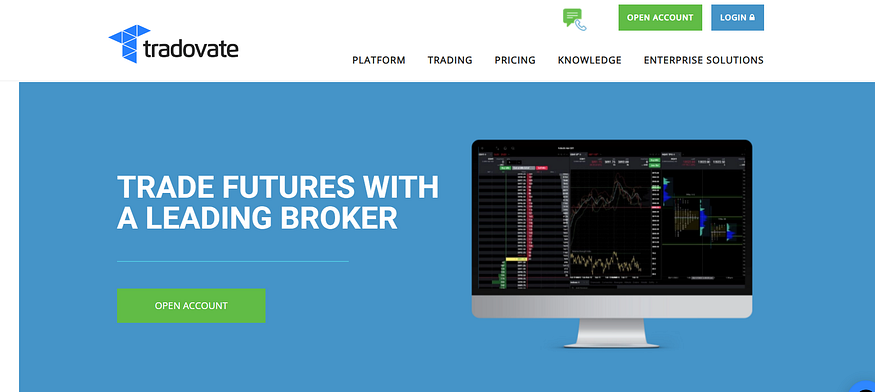
Open your browser and go to the official Tradovate website: https://www.tradovate.com.
Step 2: Register for a Free Trial Account #
Click on the “Start Free Trial” button to navigate to the registration page.
Step 3: Fill in the Registration Information #
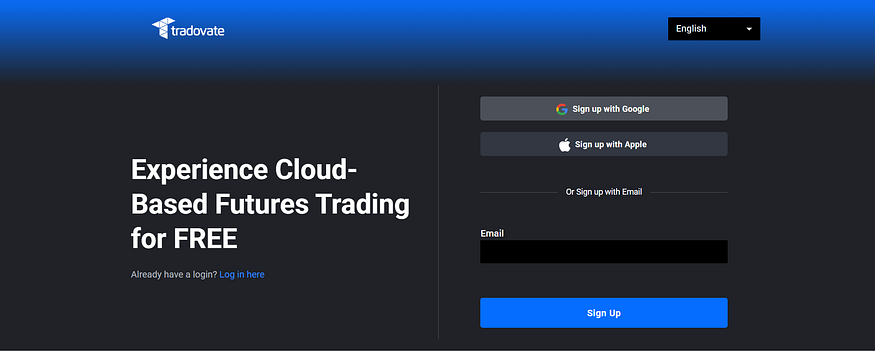
Enter your personal information, including:
- Email Address
- Password
Then, agree to the terms and conditions and click “Sign Up” to register.
Step 4: Email Verification #
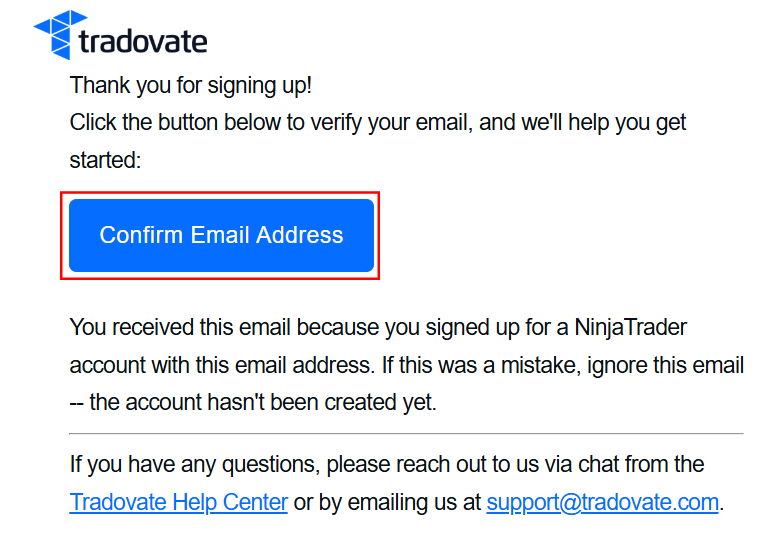
Once registered, Tradovate will send a verification email. Check your email and click the verification link to activate your account.
Step 5: Log in to Your Account #
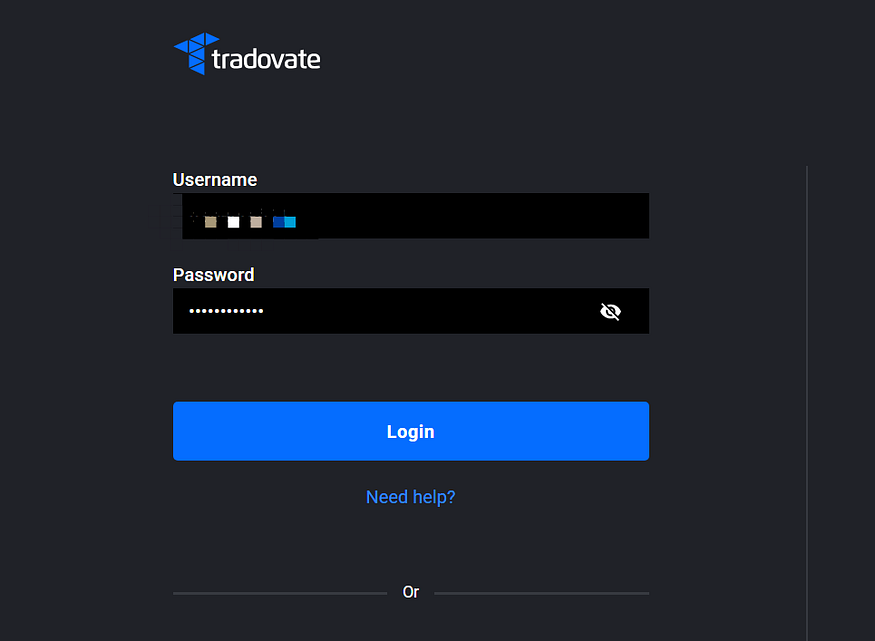
After successful verification, use your registered email and password to log into the Tradovate platform.
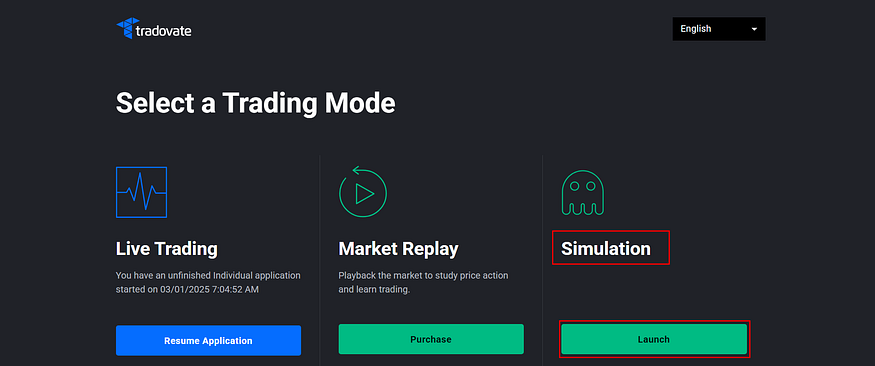
Step 6: Select a Trading Mode: Simulation #
Select the simulation mode to practice trading with virtual funds in a risk-free environment before transitioning to live trading.
How to Paper Trade Using Tradovate’s Demo Account #
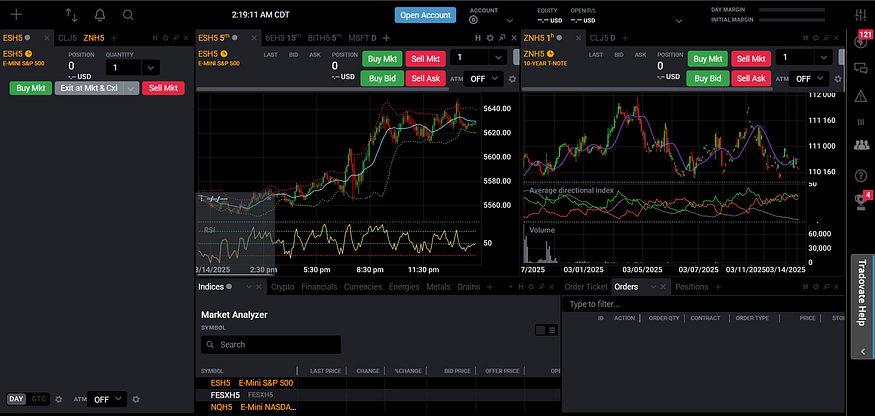
1. Familiarize Yourself with the Trading Interface #
Once logged in, you can access the Tradovate trading interface, which includes market quotes, charts, order panels, and position info. Getting familiar with these tools will boost your trading efficiency.
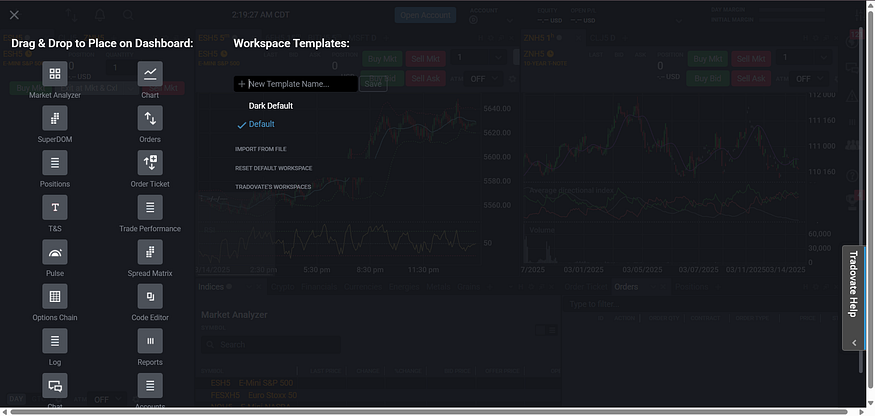
2. Set Up Your Trading Tools #
Tradovate offers highly customizable interfaces. You can add and adjust charts, market data, order books, and trade history windows to suit your preferences.
3. Start Paper Trading #
In the market quotes window, choose the futures product you want to trade, such as the E-mini S&P 500 (ES) or Nasdaq 100 (NQ). Then, place an order by clicking “Buy” or “Sell” to start your demo trading experience.
4. Analyze Your Performance #
Utilize the built-in trading reports to analyze your demo trading results, including profit/loss, execution records, and position details. Use this data to fine-tune your strategy.
Demo vs Live Account: What’s Different? #
| Feature | Demo Account | Live Account |
|---|---|---|
| Real money risk | No | Yes |
| Market data | Real-time | Real-time |
| Order execution | Simulated | Real |
| Testing strategies | Perfect for | Not recommended |
| PickMyTrade compatible | Yes | Yes |
Benefits of Using a Demo Account #
- Practice trading strategies without financial risk
- Test integration with PickMyTrade workflow
- Understand order types and platform functionality
- Gain confidence before transitioning to a live account
Limits and Considerations for Demo Accounts #
- Trial Period: Tradovate’s demo account is usually available for a 14-day free trial. If you need more time, you can contact customer support or consider upgrading to a paid membership.
- Virtual Funds: The default demo account comes with $50,000 in virtual funds, which can be used for practice trading.
- Market Data: During the trial, you’ll receive real-time market data, although some advanced data may require an additional subscription.
Conclusion #
Tradovate’s demo account is an excellent tool for anyone looking to practice futures trading in a risk-free environment. Whether you’re a beginner or a seasoned trader looking to refine your strategies, Tradovate offers a robust platform with real-time market data and customizable trading tools. By taking advantage of the demo account, you can test out your strategies, evaluate performance, and gain confidence before trading with real money.
More Resources
Want to automate trades on platforms beyond Rithmic, such as Interactive Brokers, TradeLocker, TradeStation, or ProjectX?
Explore all PickMyTrade setup guides
Using Tradovate instead?
View the Tradovate automation guide
See how this fits into PickMyTrade’s Tradovate automation.
Tradovate automation on pickmytrade.trade
Last updated: September 29, 2026


