1. Introduction #
PickMyTrade lets traders automate TradingView strategies using limit orders, giving you precise control over entry price while keeping full automation with Tradovate.
Ready to automate this with PickMyTrade? Connect TradingView to Tradovate and start executing trades automatically — no coding required.
With limit order automation:
- Orders are submitted at a predefined price
- Trades execute only when price reaches that level
- This approach works well for pullbacks, breakout-retests, and mean-reversion strategies
In this guide, you’ll learn how to configure a TradingView strategy to send limit orders, modify the generated JSON, and complete the webhook setup in TradingView.
2. How Limit Order Automation Works in PickMyTrade #
When you automate a TradingView strategy with limit orders:
- TradingView generates buy or sell signals
- PickMyTrade submits a LIMIT (LMT) order
- Orders stay pending until they fill or a new signal replaces them
As a result, you maintain control over entry price without losing automation.
Key Requirements #
To ensure proper execution, your setup must meet the following requirements:
- The strategy must generate entry signals
- The order quantity must be fixed
- The alert JSON must include a limit price
- Market position must be tracked correctly to allow reversals
3. Step-by-Step Setup in PickMyTrade #
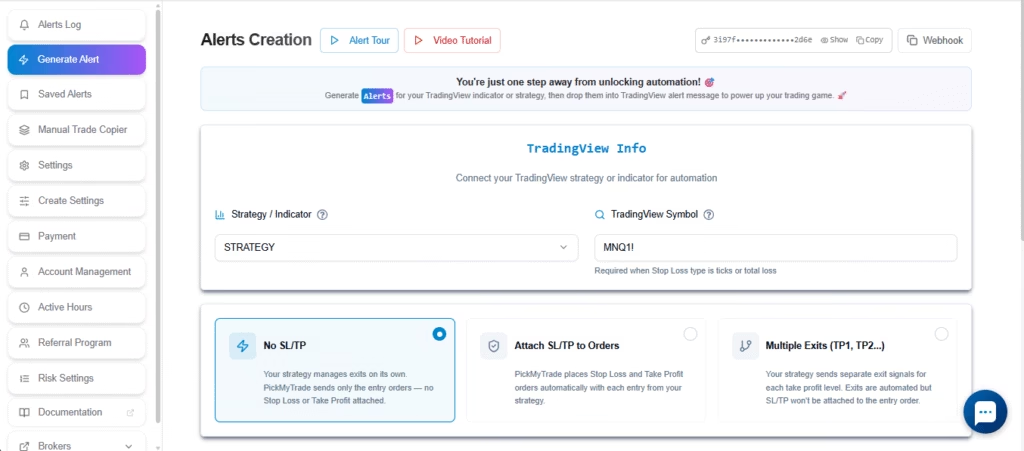
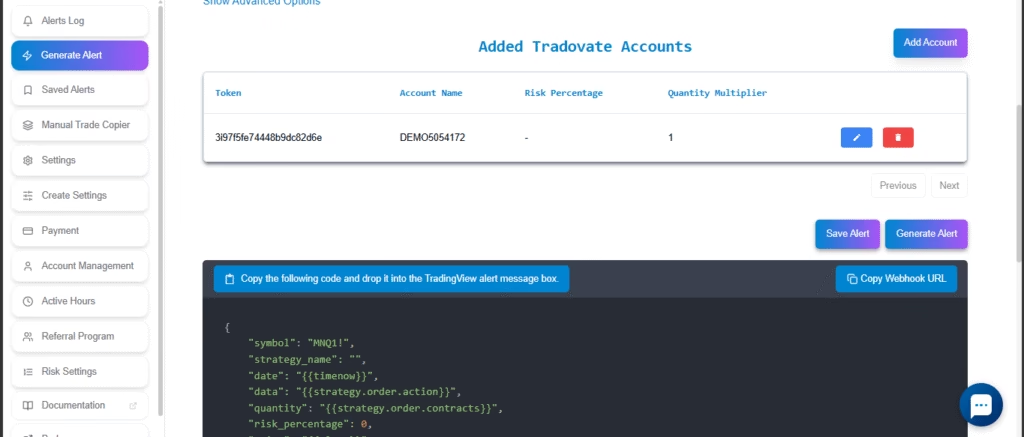
Step 1: Generate the Alert in PickMyTrade #
- Log in to PickMyTrade
- Go to Generate Alert
- Select TradingView Strategy
- Enter your TradingView symbol (for example,
MNQ1!) - Click Generate Alert
Step 2: Copy the Generated JSON #
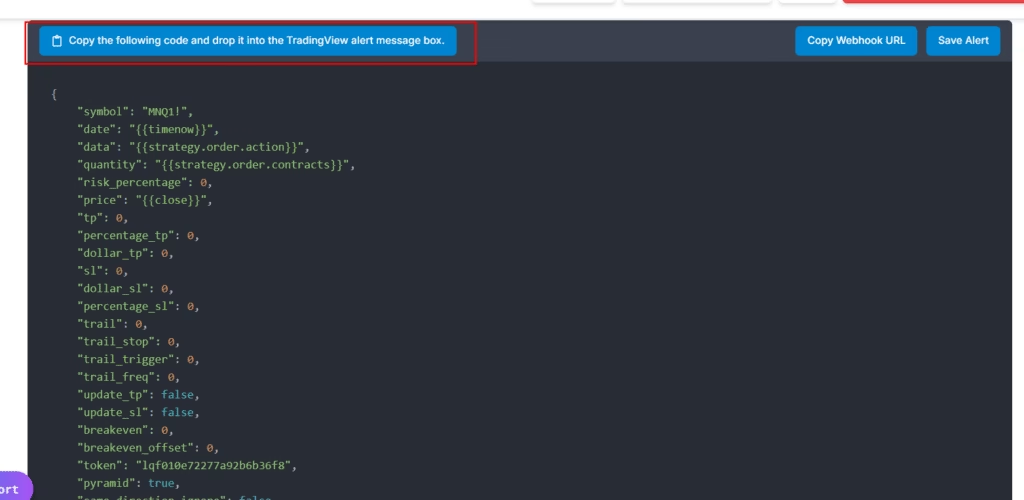
Next, click Copy and paste the JSON into a text editor such as Notepad++, VS Code, or Notepad. This allows you to safely edit the message before using it in TradingView.
Step 3: Modify the JSON for Limit Orders #
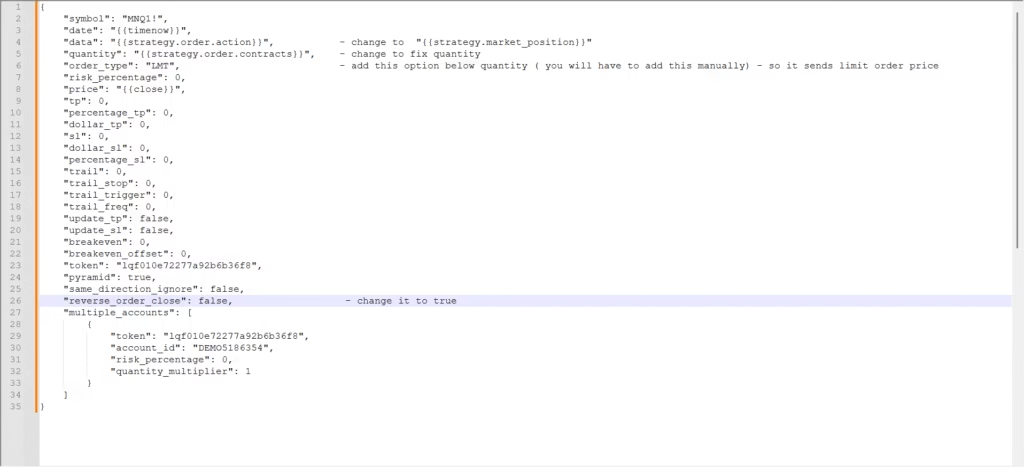
Make the following required changes to the generated JSON.
| # | Field Name | Action | Value |
|---|---|---|---|
| 1 | data | Replace | from {{strategy.order.action}} to {{strategy.market_position}} |
| 2 | quantity | Set | 2 |
| 3 | order_type | Add | "LMT" |
| 4 | reverse_order_close | Set | true |
Make the following required changes to the generated JSON before using it in TradingView.
Final JSON for Limit Orders #
{
  "symbol": "MNQ1!",
  "date": "{{timenow}}",
  "data": "{{strategy.market_position}}",
  "quantity": 4,
  "order_type": "LMT",
  "risk_percentage": 0,
  "price": "{{close}}",
  "tp": 0,
  "percentage_tp": 0,
  "dollar_tp": 0,
  "sl": 0,
  "dollar_sl": 0,
  "percentage_sl": 0,
  "trail": 0,
  "trail_stop": 0,
  "trail_trigger": 0,
  "trail_freq": 0,
  "update_tp": false,
  "update_sl": false,
  "breakeven": 0,
  "breakeven_offset": 0,
  "token": "lqf****",
  "pyramid": true,
  "same_direction_ignore": false,
  "reverse_order_close": true,
  "multiple_accounts": [
    {
      "token": "lq****",
      "account_id": "DEMO****",
      "risk_percentage": 0,
      "quantity_multiplier": 1
    }
  ]
}
GTD Orders (Tradovate) #
Known Issue: Tradovate has confirmed a platform-side issue where time-based GTD expiration may not work correctly. As a result, orders using gtd_in_second or GTD expiration may remain active past their intended expiry time.
Tradovate has acknowledged the issue and is working on a fix. Until then, please monitor GTD orders manually.
5. Configure TradingView Webhook and Alert #
Create the TradingView Alert #
- Open the TradingView strategy on your chart
- Click Create Alert
- Select Strategy → Order fills
- Enable Webhook URL
- Paste the Webhook URL generated in PickMyTrade
- Paste the modified JSON into the alert message body
- Click Save to activate the alert
For detailed, step-by-step instructions with screenshots, refer to the following guide:
https://docs.pickmytrade.trade/docs/configuring-tradingview-alerts/
FAQ’s #
A limit order lets you define the exact price where you want to enter a trade. Tradovate keeps the order pending until price reaches that level or conditions change.
You need to modify the generated JSON by setting order_type to "LMT", adding a price field, fixed quantity, and enabling reversal settings if needed.
The order stays pending until it fills, expires, or a new signal replaces it based on your configuration.
Yes. Create a TradingView alert, enable webhook URL, paste the PickMyTrade webhook, and use the edited JSON message body.
More Resources #
See how this fits into PickMyTrade’s Tradovate automation.
Tradovate automation on pickmytrade.trade
Last updated: September 29, 2026


