This guide explains how to use the latest versions of the GetOrders and GetPositions endpoints to retrieve order and position data for a master account and its linked client accounts.
A single master account can query data for any client account linked through PickMyTrade Account Management. Once an account is linked and its API access is connected, you only need to provide the client’s email address in the API request. Use the same master token for all requests. No separate login or authentication token is required for each client account.
Before making requests, link your client accounts, enable API access, and confirm that the target account shows Connected in the API dashboard.
How It Works #
The process is:
- Link the client/child accounts to your master account through Account Management.
- Open the API dashboard and click Enable API.
- Confirm that API access shows Connected for the accounts you want to query.
- Log in through the API using your master account credentials to obtain an API token.
- Use that token with the
GetOrdersorGetPositionsendpoint. - Provide the target account’s email address to retrieve its data.
Important: Each linked client account must have an active PickMyTrade subscription for its data to be returned.
Step 0: Link Client Accounts in Account Management #
Before using GetOrders or GetPositions, every client account you want to query must be linked to your master account.
This is a one-time setup performed through the PickMyTrade web application, not through the API.
For the complete Account Management guide, see:
PickMyTrade Account Management
Access Account Management #
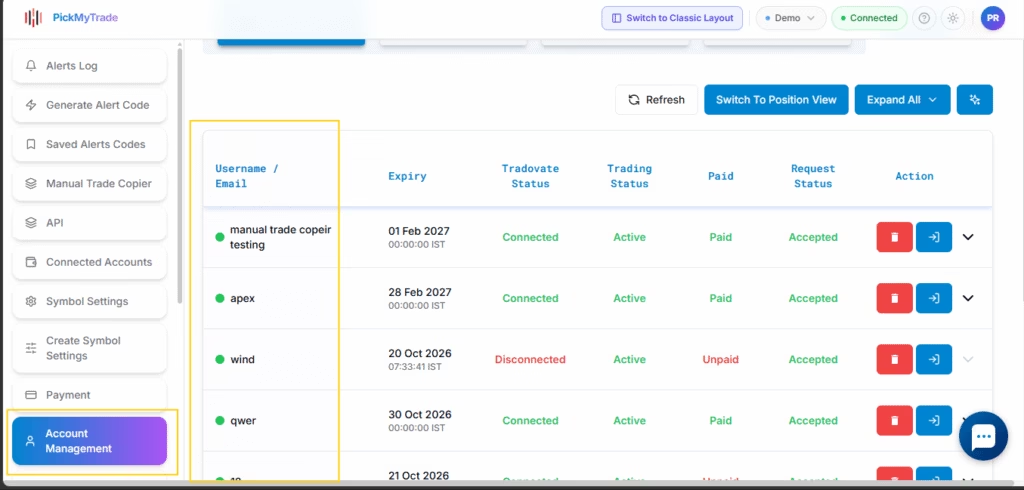
In the current PickMyTrade layout, Account Management is available directly in the left-hand navigation panel.
Click Account Management to open the dashboard.
The dashboard contains two tabs:
- My Client / Child Accounts — Displays accounts that you have added or that have granted you access.
- My Master Account — Displays access requests made against your account, which you can approve or reject.
Add a Client Account #
There are two ways to link a client account.
Option 1: Add PickMyTrade Account Details #
Use this option when creating the client account yourself.
- Enter a unique username.
- Optionally enter an email address.
- Click Add to List.
Option 2: Request Existing PickMyTrade Account Access #
Use this option when the client already has a PickMyTrade account.
- Enter the email address registered to the client’s PickMyTrade account.
- Click Request Account Access.
If the account was added using another person’s email address, that person must approve the request from their My Master Account tab.
Until the request is approved, the account appears with a Pending status.
After approval, the account appears under My Client / Child Accounts. The email address shown there is the email address you should use with the GetOrders and GetPositions endpoints.
Enable API Access Before Logging In Through the API #
Open the API Dashboard #
Log in to your master PickMyTrade account and select API from the left sidebar.
Before activation, the dashboard displays API is off and API is not enabled.
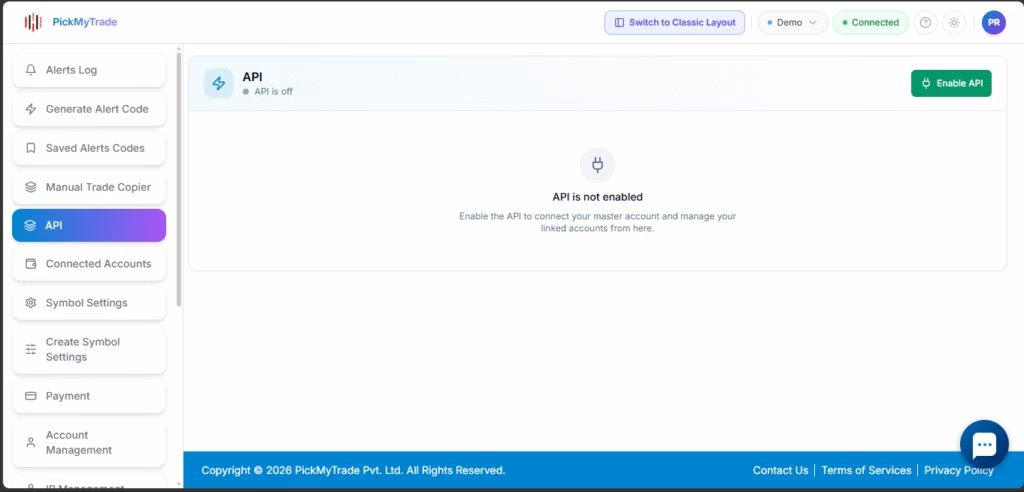
Click Enable API to start API access for your master account and all eligible client accounts already linked through Account Management.
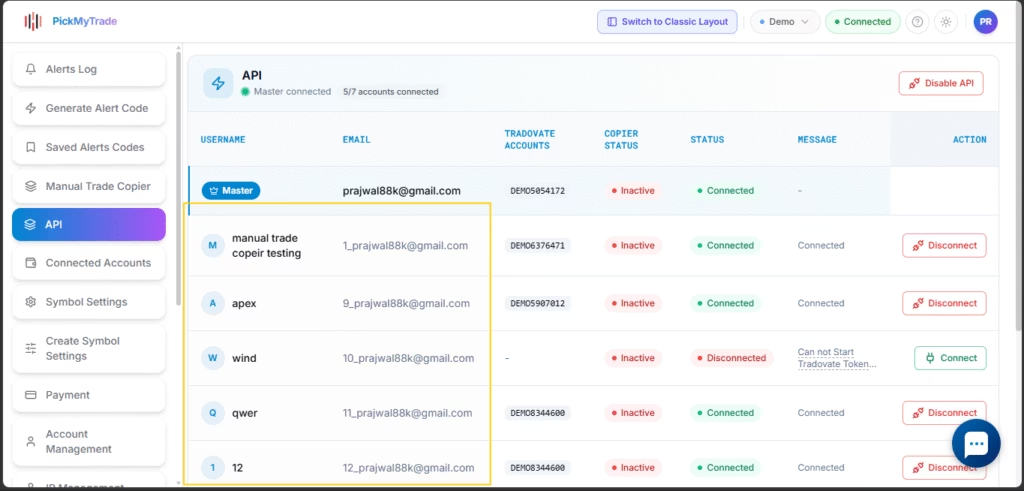
An account can remain disconnected if its Tradovate login is not connected or its Manual Trade Copier is active. Check each account’s status before requesting its data.
Understand the Dashboard #
| Column or control | Meaning |
|---|---|
| Username / Email | Identifies the master or client PickMyTrade account. |
| Tradovate Accounts | Shows the broker account IDs associated with that PickMyTrade login. |
| Copier Status | Indicates whether the Manual Trade Copier is active or inactive for that account. |
| API Status — Connected | API access is connected for that login’s Tradovate accounts, allowing order and position queries. |
| API Status — Disconnected | API access is not connected for that account. Check the Message column for the reason. |
| Message | Provides connection information or explains why access could not start. |
| Connect | Enables API access for an individual client account once its prerequisites are met. |
| Disconnect | Disconnects API access for that individual client account. |
| Disable API | Turns off API access from the dashboard. |
Copier Status and API Status are separate. An Inactive copier does not automatically mean API access is connected. Always check the API status for the account you want to query.
Resolve a Disconnected Account #
If Tradovate Is Not Connected #
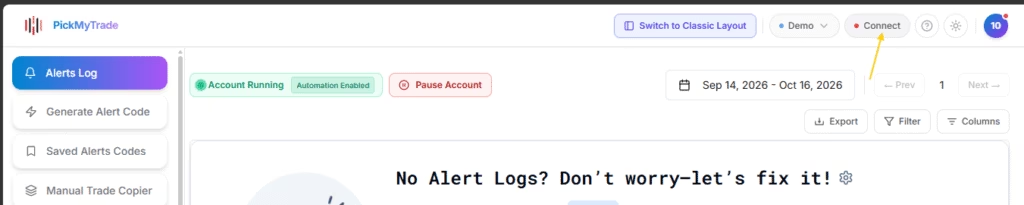
- Log in to the affected client’s PickMyTrade account.
- Connect its Tradovate login.
- Return to the master account’s API dashboard.
- Click Connect for that client account.
- Confirm that its API status changes to Connected.
If the Manual Trade Copier Is Active #
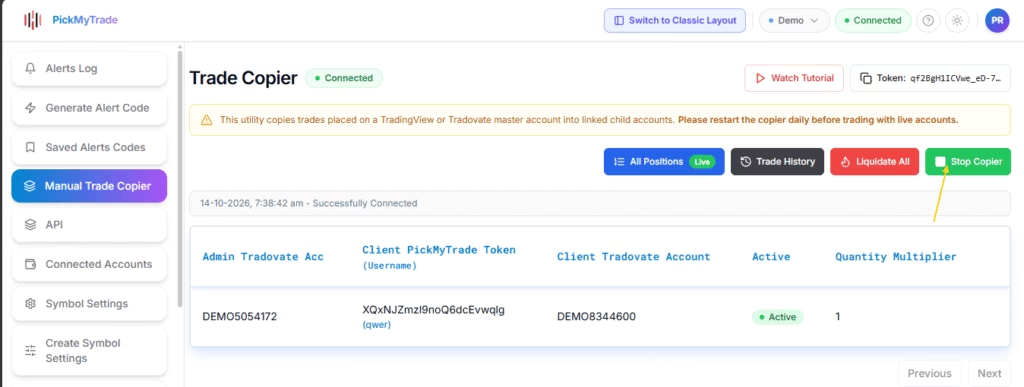
- Log in to the affected client’s PickMyTrade account.
- Disable the Manual Trade Copier from that client account itself.
- Return to the master account’s API dashboard.
- Click Connect for that client account.
- Confirm that its API status changes to Connected.
Important: Disabling the copier only on the master account does not resolve an active copier on a client account. You must disable it within the affected client account.
Switch Between API Access and the Copier #
If you want to use the copier later, then you can enable the copier within that account.
To return to API access, disable the copier within the client account and click Connect again in the master API dashboard.
Once the target accounts show Connected, continue to Step 1: Log In and Get Your Access Token.
Step 1: Log In and Get an Access Token #
The first API call is the login request.
Log in using your master account credentials. The token returned by this request is used to authenticate subsequent GetOrders and GetPositions requests.
Endpoint #
POST https://api.pickmytrade.trade/v3/LogIn
Request Body #
{
    "username": "*****************",
    "password": "************",
    "captcha_token": "",
    "by_api": true
}
Response #
{
    "data": "qT699d239dbcd4dcbc587e",
    "socket_url": "",
    "error": false
}
The value returned in the data field is your bearer token.
Use this token in the Authorization header for the GetOrders and GetPositions requests:
Authorization: Bearer YOUR_TOKEN
Important: Master Account and Single Session #
Only a master account can log in through this API.
The master account supports one active session at a time.
If the master account logs into the PickMyTrade web application while an API token is active, the existing API token may stop working for GetOrders and GetPositions.
If either endpoint returns a 401 Unauthorized response:
- Call the
LogInendpoint again. - Obtain a new token.
- Use the new token for subsequent API requests.
Step 2: Retrieve Order Details #
Use the GetOrders endpoint to retrieve order history for:
- The master account itself, or
- Any client/child account linked to the master account.
The account is selected using the email field. You do not need to log in separately for each client.
Endpoint #
POST https://api.pickmytrade.trade/v3/GetOrders
Authorization #
Use the bearer token returned by the LogIn endpoint.
Authorization: Bearer YOUR_TOKEN
Request Body #
{
    "email": "[email protected]",
    "from_date": "2026-04-21",
    "to_date": "2026-07-08",
    "order_id": "547231481639"
}
Request Parameters #
| Parameter | Description |
|---|---|
email | Email address of the master or linked client/child account you want to query. |
from_date | Start date of the order search range. |
to_date | End date of the order search range. |
order_id | Optional. Use this to retrieve a specific order. Omit it to retrieve all orders within the specified date range. |
Example Response #
{
    "data": [
        {
            "account_id": "33001698",
            "side": "Sell",
            "id": 12,
            "order_status": "Filled",
            "contract_id": "MNQU6",
            "created": "2026-06-19 14:03:47",
            "master_token": "tr41f3653d565f1aadbe8d",
            "order_id": "547231481639",
            "tp_order_id": "571204440058",
            "tp_order_status": "Working"
        }
    ],
    "error": false
}
Order Response Fields #
| Field | Description |
|---|---|
account_id | Broker account on which the order was placed. |
order_id | Unique identifier for the order. This can also be used as the order_id search parameter. |
master_token | Identifies the master/source account associated with the trade copy. |
side | Order direction, such as Buy or Sell. |
contract_id | Instrument traded, such as MNQU6. |
order_status | Current order status, such as Filled, Cancelled, Working, or Rejected. |
created | Date and time when the order was created. |
order_type | Type of order, when available. |
price | Order or execution price, when available. |
quantity | Order quantity, when available. |
sl_order_id | Stop-loss order ID linked to the trade. |
sl_order_type | Stop-loss order type. |
sl_order_price | Stop-loss order price. |
tp_order_id | Take-profit order ID linked to the trade. |
tp_order_type | Take-profit order type. |
tp_order_price | Take-profit order price. |
tp_order_status | Current status of the take-profit order. |
time_in_force | How long the order remains active, such as GTC or Day. |
expire_time | Expiration time when applicable. |
strategy_id | Identifies the strategy that generated the order, when applicable. |
Empty Fields #
Some fields may be empty in the response because they do not apply to a particular order.
For example, a market order without a stop-loss order may have empty sl_order_* fields.
Step 3: Retrieve Positions #
Use the GetPositions endpoint to retrieve position information for the master account or any linked client/child account.
As with GetOrders, the email field identifies the account you want to query.
No separate client login is required.
Endpoint #
POST https://api.pickmytrade.trade/v3/GetPositions
Authorization #
Use the bearer token returned by the LogIn endpoint.
Authorization: Bearer YOUR_TOKEN
Request Body #
{
    "email": "[email protected]"
}
The email value must correspond to the master account or a client/child account linked through Account Management.
Example Response #
{
    "data": [
        {
            "account_id": "DEMO4359364",
            "contract_id": "NQU6",
            "net_pos": 0,
            "bought": 0,
            "sold": 0,
            "timestamp": "2026-07-15T21:33:48.642Z",
            "datetime": "2026-07-16 12:04:23.456349"
        },
        {
            "account_id": "DEMO4359364",
            "contract_id": "CLQ6",
            "net_pos": 0,
            "bought": 0,
            "sold": 0,
            "timestamp": "2026-07-13T21:34:18.192Z",
            "datetime": "2026-07-15 21:07:26.128674"
        }
    ],
    "error": false
}
Position Response Fields #
| Field | Description |
|---|---|
account_id | Broker account associated with the position. |
contract_id | Instrument associated with the position, such as NQU6. |
net_pos | Current net position size. A positive value represents a net long position, a negative value represents a net short position, and 0 means the position is flat. |
bought | Total quantity bought for the contract. |
sold | Total quantity sold for the contract. |
timestamp | UTC timestamp of the most recent position update in ISO 8601 format. |
datetime | Local timestamp of the most recent position update. |
Understanding net_pos #
The response can contain contracts that currently have no open position.
For example:
{
    "contract_id": "NQU6",
    "net_pos": 0
}
A net_pos of 0 means the account is currently flat for that contract. It does not mean that the contract is missing data.
The endpoint returns information for contracts the account has traded, including contracts whose current position is zero.
Authentication and Account Flow #
The complete flow can be summarized as:
Master Account
      │
      ▼
Account Management
      │
      ├── Link Client Account A
      ├── Link Client Account B
      └── Link Client Account C
      │
      ▼
POST /v3/LogIn
      │
      ▼
Master Bearer Token
      │
      ├── POST /v3/GetOrders
      │       └── email = Client A
      │
      ├── POST /v3/GetOrders
      │       └── email = Client B
      │
      ├── POST /v3/GetPositions
      │       └── email = Client A
      │
      └── POST /v3/GetPositions
              └── email = Client C
The same master token can therefore be used to query multiple linked accounts. The email value determines which linked account’s data is returned.
Important Notes #
- Client accounts must be linked through Account Management before their data can be queried.
- Each linked account must have an active PickMyTrade subscription.
- Use the master account credentials when calling
LogIn. - No separate API login is required for each client account.
- Use the client’s registered email address in the
emailparameter. - Only one master API session can be active at a time.
- If a
401response is returned, log in again to obtain a fresh token. - A position with
net_pos: 0indicates that the account is currently flat for that contract. - Some order fields may be empty when they are not applicable to the order.
Summary #
The latest GetOrders and GetPositions endpoints make it possible for a master account to access data across its linked client accounts using a single authentication token.
The key requirements are:
- Link the client account through Account Management.
- Authenticate using the master account.
- Use the returned bearer token.
- Pass the linked client’s email address in the request.
- Call
GetOrdersorGetPositionsto retrieve the account’s data.
This approach eliminates the need to maintain separate API login sessions for each linked client account.
Last updated: October 21, 2026


