If you see the error:

“Cannot place alert: valid IP not found in pool”
it means that PickMyTrade received a webhook request from an IP address that is not currently allowed in your IP Management settings.
If you place trades through TradingView, no setup is required here. You can leave IP Management unchanged.
TradingView: No action required. #
This security feature helps protect your PickMyTrade account and trading activity by controlling which IP addresses can send requests to your account.
Why does this happen? #
This error commonly occurs when a webhook request is sent to PickMyTrade from somewhere other than TradingView, such as:
- Another application
- A server
- An automation platform
- A custom integration
- A system with a different public IP address
If the request comes from an IP address that is not in your allowed IP pool, PickMyTrade will reject the request.
How to fix the error #
1. Open IP Management #
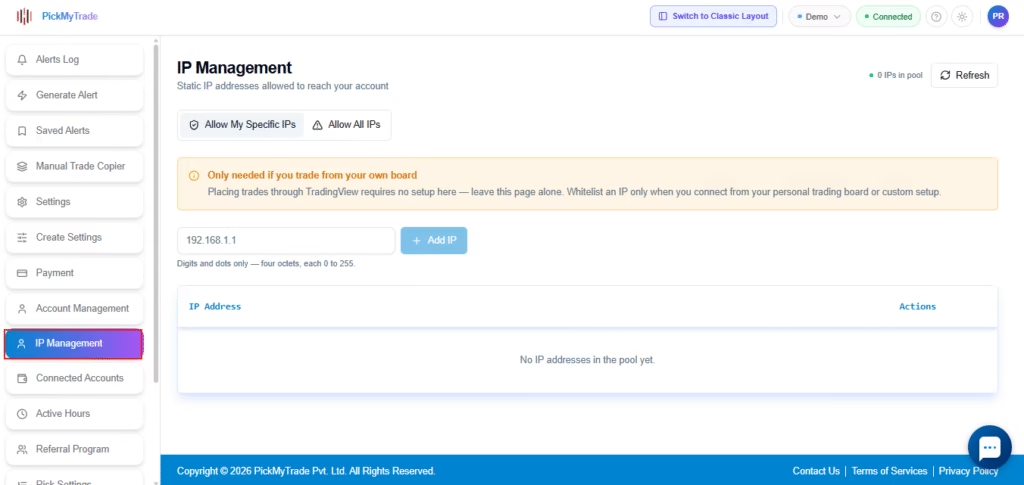
Log in to your PickMyTrade dashboard and open the IP Management tab.
2. If you have a static IP #
If the application or server sending the webhook uses a static public IP, add that IP address to your allowed IPs under IP Management.
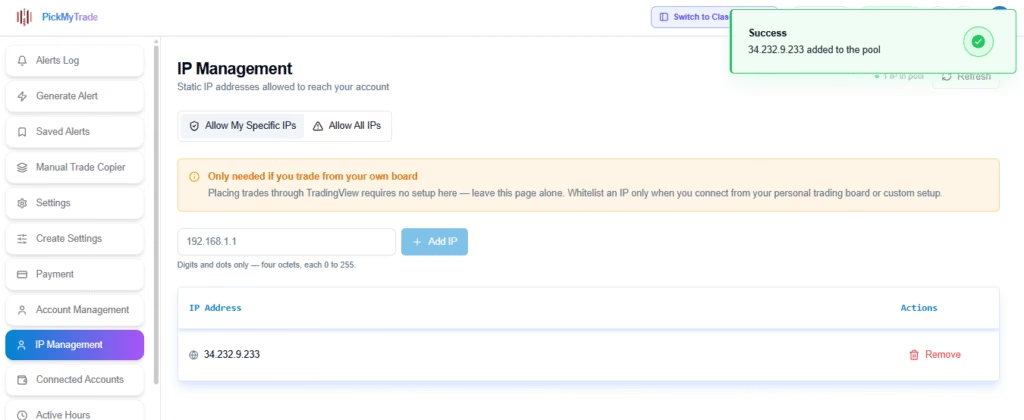
Once the IP is added, requests coming from that address will be allowed.
If you are unsure whether your internet connection has a static IP, contact your ISP (Internet Service Provider) to confirm.
3. If you have a dynamic IP #
If you have a dynamic IP and want a more secure and consistent trading environment, consider running your automated setup on a VPS (Virtual Private Server) with a static IP.
Your automated setup can run on the VPS, and you can whitelist the VPS’s static IP address in IP Management.
This gives you:
- A consistent IP address for your automated trades
- More restrictive IP whitelisting
- A dedicated environment for your trading automation
- No need to update your allowed IP whenever your home or office IP changes
Recommended setup:
Your automated setup → VPS with static IP → PickMyTrade
If you do not use a VPS and your IP changes dynamically, you can use Allow All instead.
If your public IP changes periodically, you can select:
Allow All
under IP Management.
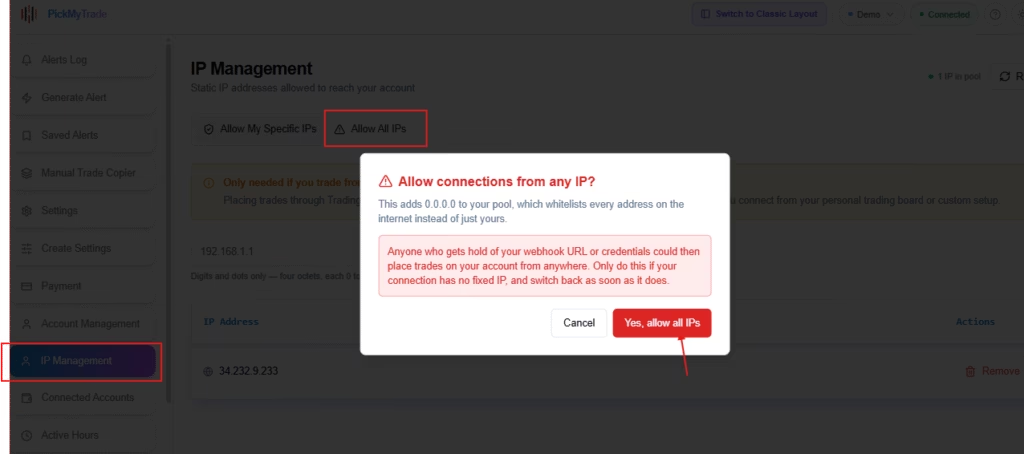
This allows PickMyTrade to accept webhook requests from any IP address, so you do not need to update your allowed IP whenever your dynamic IP changes.
Security note: Allow All permits requests from any IP address. If you have a known static IP, adding only that IP provides a more restrictive security configuration.
Which option should I use? #
| Your setup | Recommended option |
|---|---|
| Static public IP | Add your IP address |
| Dynamic public IP | Select Allow All |
| Server with a fixed public IP | Add the server IP |
| Server/automation with changing IPs | Select Allow All |
Important #
The IP Management feature was introduced as part of PickMyTrade’s security updates.
If your webhook previously worked but has started showing this error, check your IP Management settings first.
After updating the settings, send the webhook request again and verify that the alert is processed successfully.
Quick steps #
- Log in to your PickMyTrade dashboard.
- Open IP Management.
- Identify whether the webhook sender uses a static or dynamic IP.
- Add the static IP, or select Allow All for a dynamic IP.
- Send the webhook again.
If the error continues after updating IP Management, verify that the request is actually being sent from the IP address you added.
More Resources #
See how this fits into PickMyTrade’s Tradovate automation.
Tradovate automation on pickmytrade.trade
Last updated: September 29, 2026


