What Is Refresh Token? #
The Refresh Token feature allows you to generate a new token for your PickMyTrade account.
Use this feature if your current token has been exposed, shared accidentally, or you want to replace it with a new token for security reasons.
Important: Refreshing your token immediately invalidates the old token. Any TradingView alerts that are still using the old token will no longer be able to send signals to PickMyTrade.
When Should You Refresh Your Token? #
Refresh your token when:
- Your token has been exposed or shared.
- You suspect someone else may have access to your token.
- You want to rotate your token for security purposes.
- You need to replace your existing token with a new one.
How to Refresh Your Token #
1. Go to the Refresh Token Tab #
From your PickMyTrade dashboard, open Refresh Token tab.
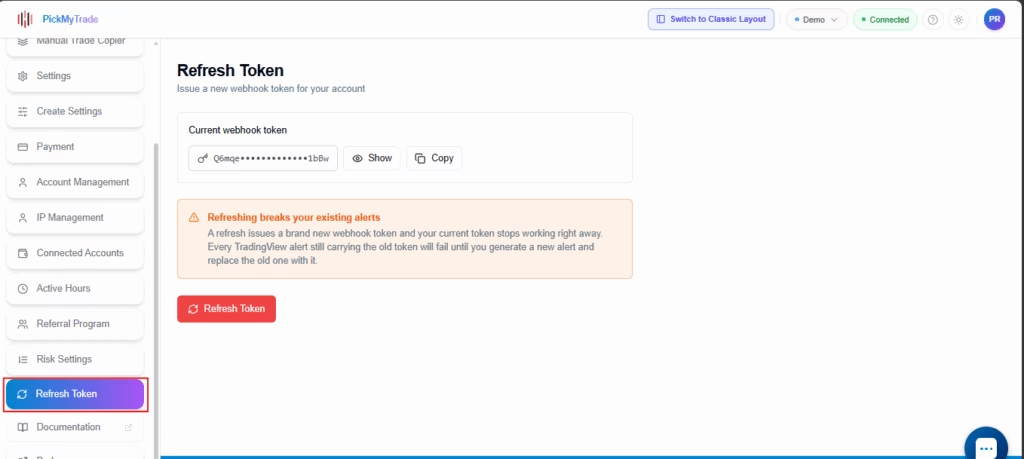
You will see your current webhook token and the Refresh Token button.
2. Refresh Your Token #
Click Refresh Token.
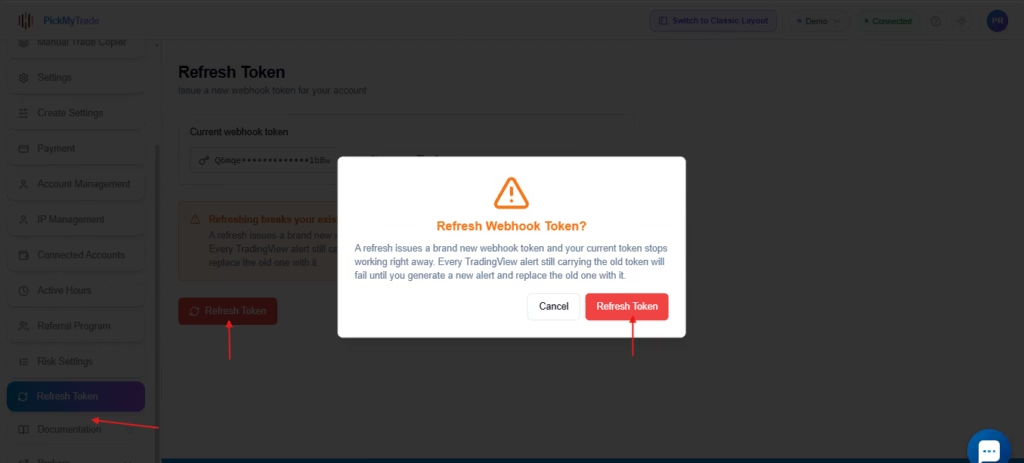
PickMyTrade will immediately generate a new token for your account.
The previous token will stop working immediately.
Note: Refreshing your token may take approximately 30 seconds. Please wait for the process to complete before changing tabs or checking your new token.
3. Check Your New Token #
After refreshing, remain on the Refresh Token tab.
Check the Current webhook token section to confirm that your token has changed.
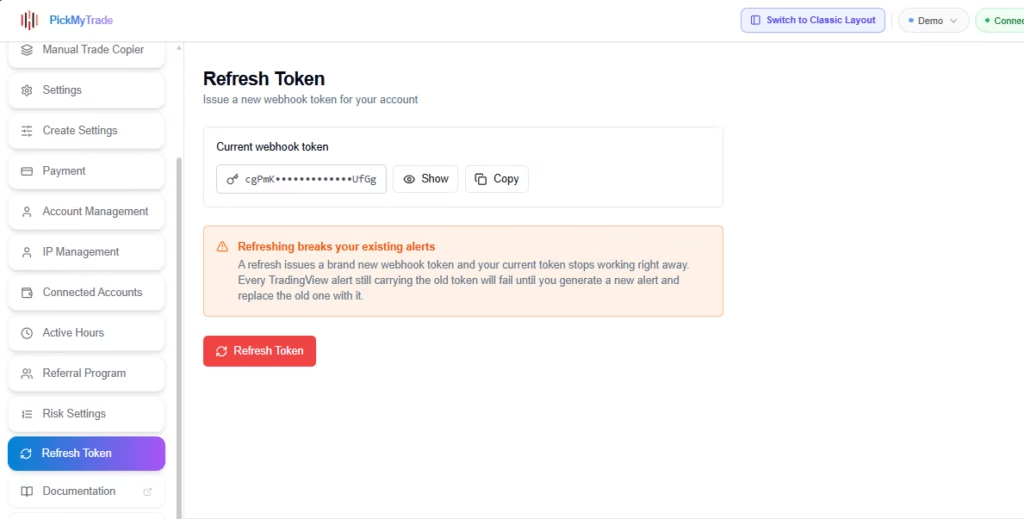
Use Show to view the token or Copy to copy the new token.
Updating Saved PickMyTrade Alerts #
If you have saved alerts in PickMyTrade, refreshing your token does not automatically update the token stored in those alerts.
Your saved alerts may still contain the old token.
To update a saved alert:
1. Open Your Saved Alerts #
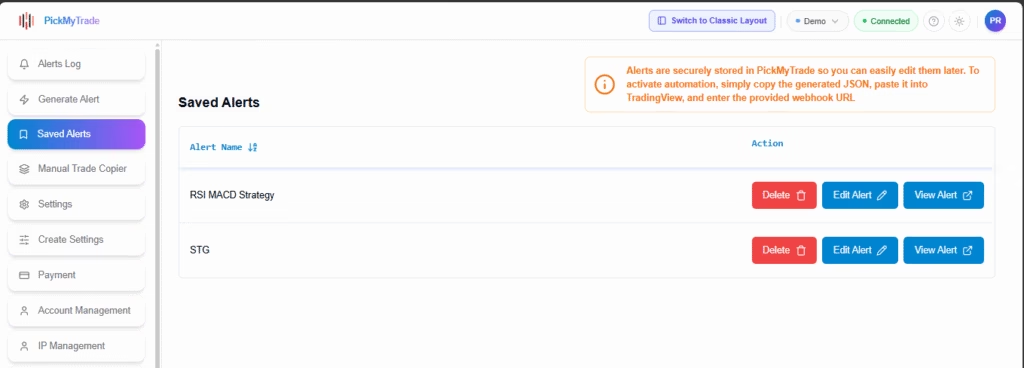
Go to your saved alerts in PickMyTrade and find the alert you want to update.
2. Click “Edit Alert” #
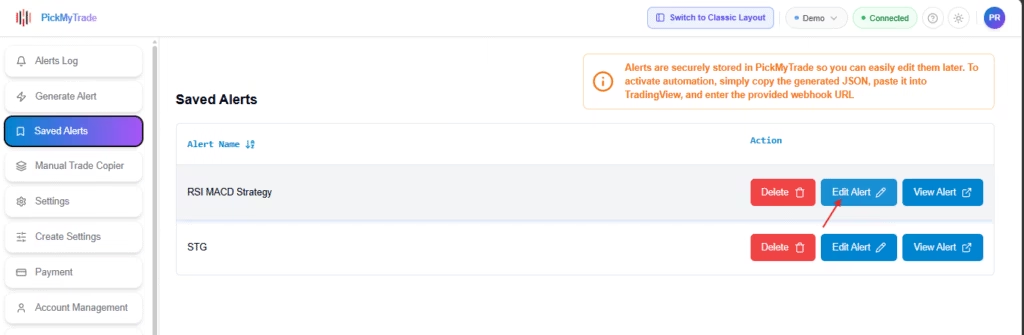
Click Edit Alert on the saved alert.
3. Remove the Old Account #
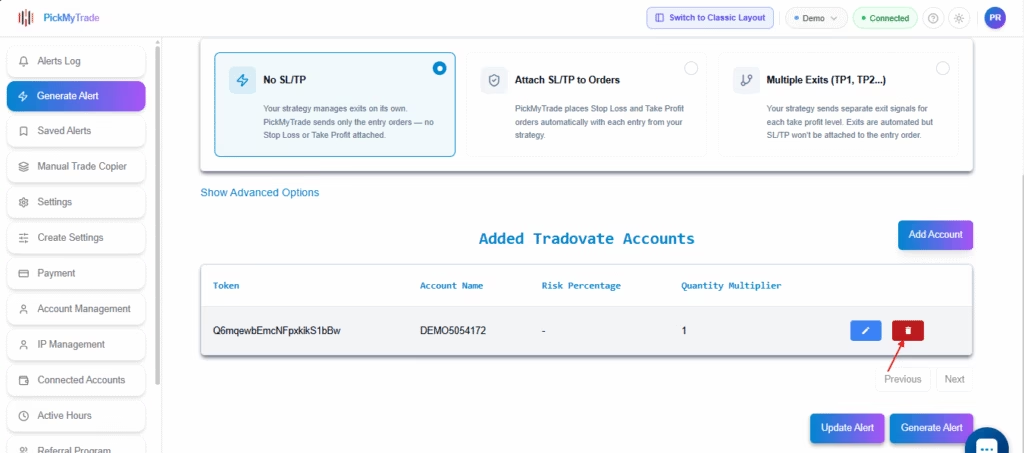
In the Accounts section, remove the existing/old account ID.
4. Add the Account Again #
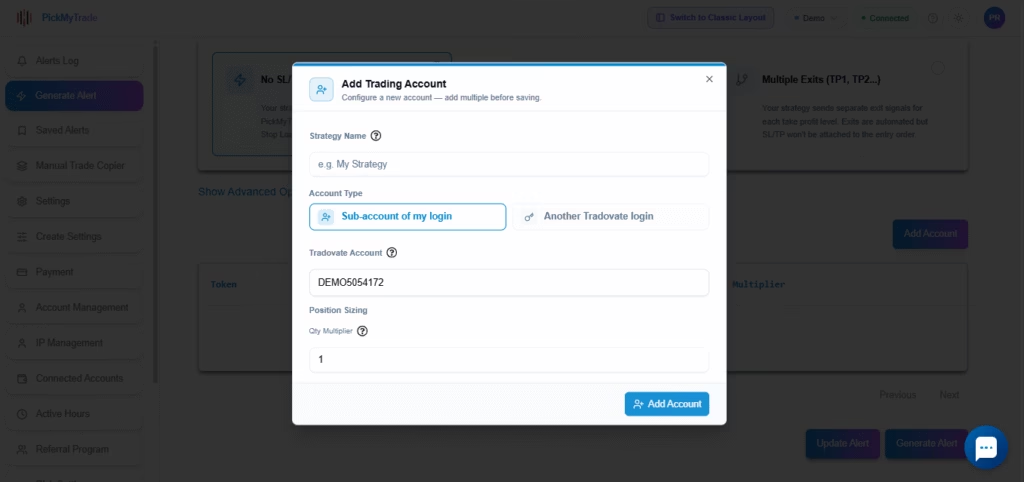
Add the account ID again.
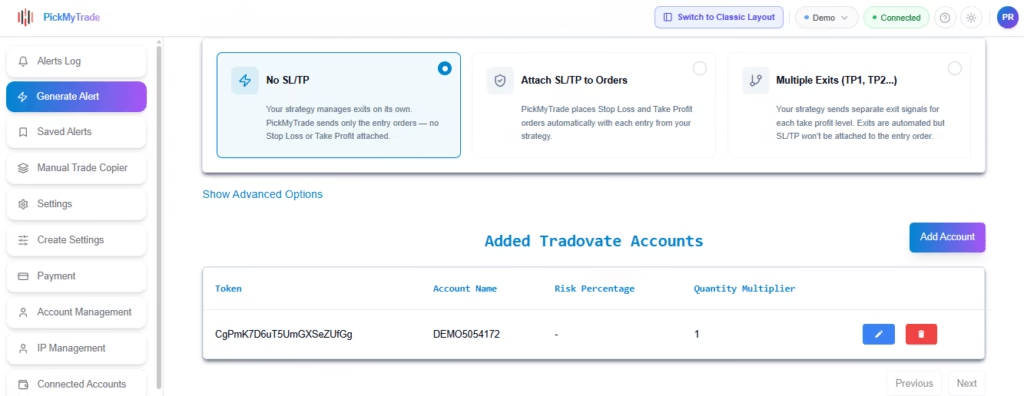
When you re-add the account, PickMyTrade will associate it with the newly generated token.
5. Click “Update” #
Click the Update button to save the alert.
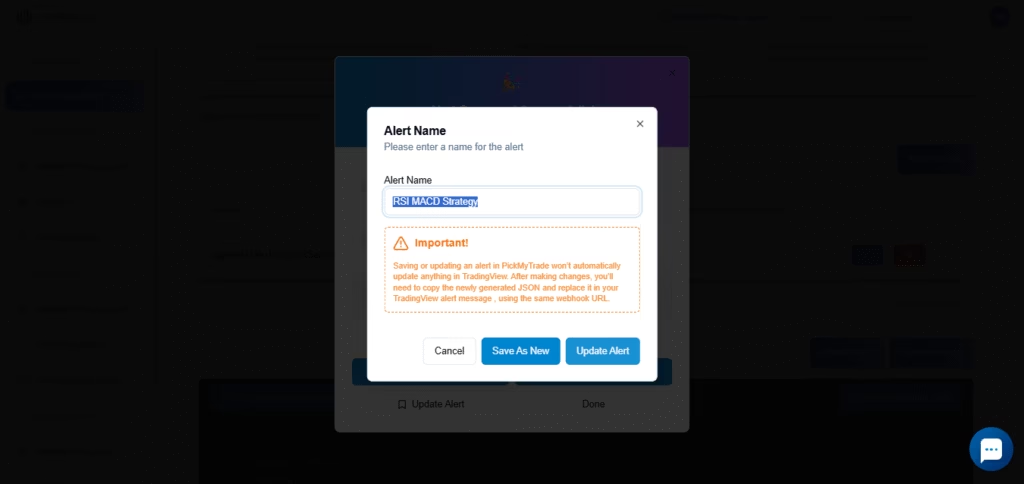
Your saved alert will now be updated with the new token.
Important: Repeat these steps for each saved PickMyTrade alert that was using the old token.
Updating Your TradingView Alerts #
After refreshing your token, your existing TradingView alerts may still contain the old token.
These alerts will no longer be able to send signals to PickMyTrade.
For every affected TradingView alert:
1. Open the alert in TradingView.
2. Find the PickMyTrade token.
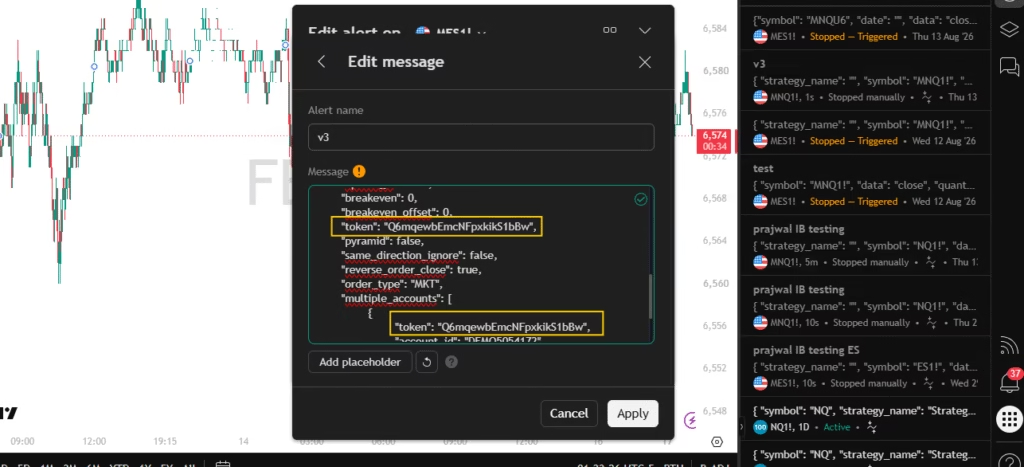
3. Replace the old token with your new PickMyTrade token.
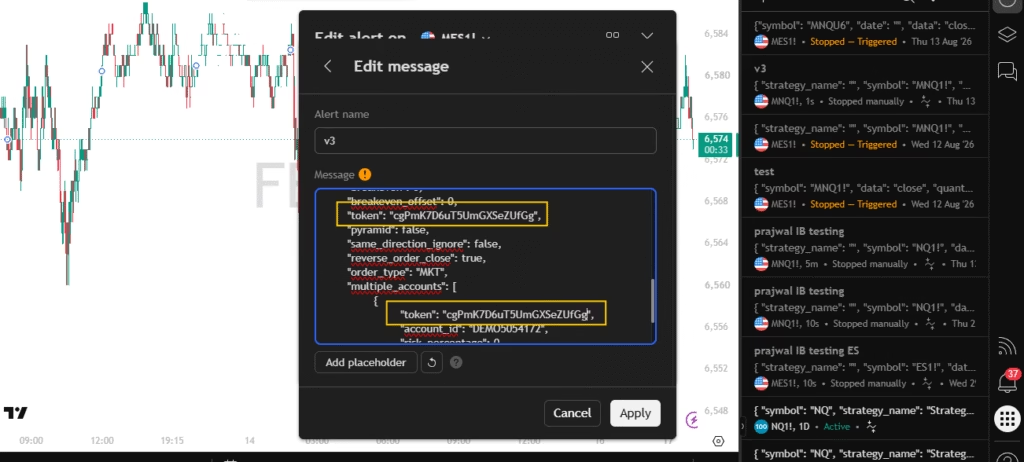
4. Save the alert.
5. Repeat for every alert that uses the old token.
Test Your Alerts #
After updating your TradingView alerts, wait for the alert to trigger so the signal can be sent to your PickMyTrade account and confirm that it is received successfully.
Important #
Refreshing the token does not automatically update existing alerts.
Both your saved PickMyTrade alerts and TradingView alerts may still reference the old token.
Before refresh:
TradingView Alert → Old Token → PickMyTrade
After refreshing:
TradingView Alert → Old Token → ❌ No longer works
After updating the alert:
TradingView Alert → New Token → PickMyTrade → ✅ Works
Security Tip: Treat your PickMyTrade token like a password. If you believe your token has been exposed, refresh it and update all saved PickMyTrade alerts and TradingView alerts that were using the old token.
More Resources #
See how this fits into PickMyTrade’s Tradovate automation.
Tradovate automation on pickmytrade.trade
Last updated: September 29, 2026


