Last Updated: September 29, 2026 | Published: September 2, 2025
We’ve added a new Saved Alerts feature to make managing alert code easier. Instead of recreating alerts code every time, you can now save, reuse, edit, and copy them directly in PickMyTrade.
1. Generate an Alert #
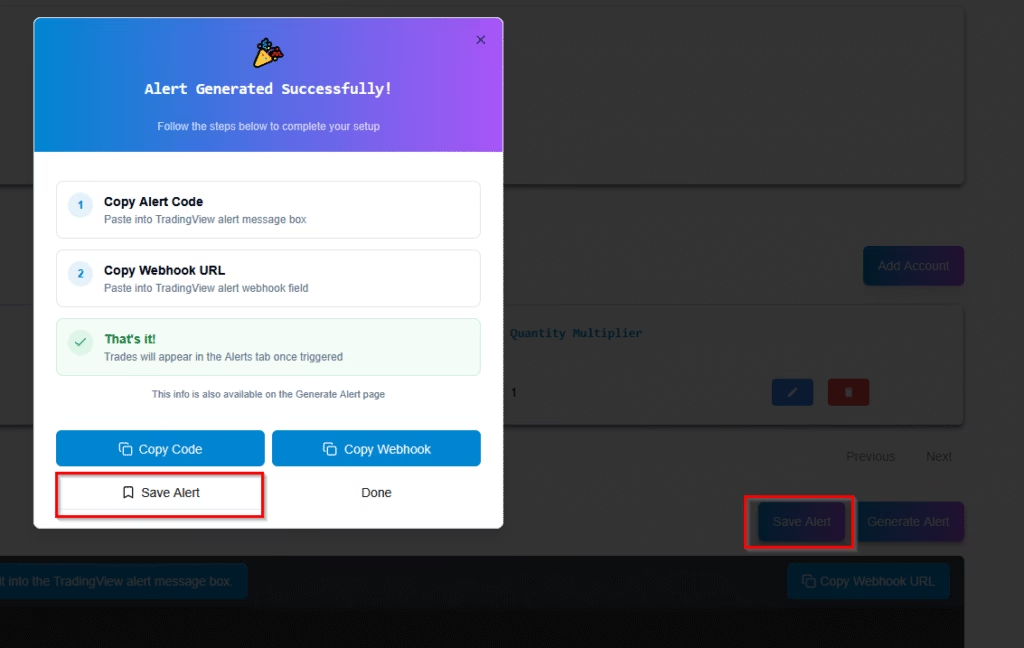
- Go to the Generate Alert tab.
- Choose whether you want to generate an alert for an Indicator or a Strategy.
- Once configured, click Generate Alert.
- You’ll now see an option to Save Alert for future use.
2. Save an Alert #
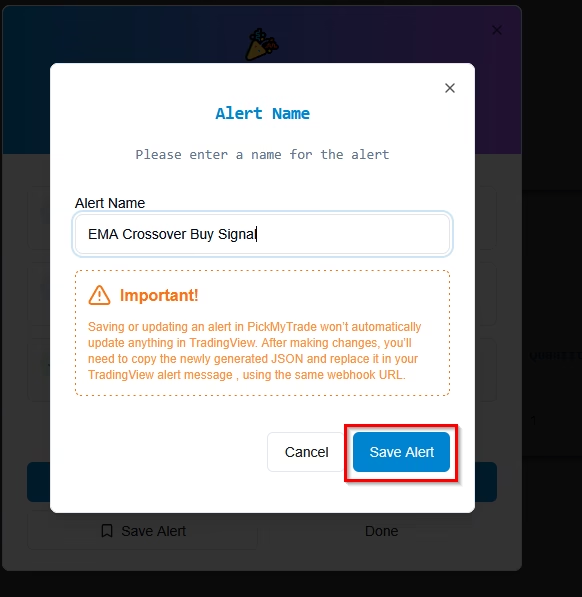
- After setting up your alert, click Save Alert.
- Give it a recognizable name (e.g., EMA Crossover Buy Signal).
- Click Save Alert to store it.
3. View Saved Alerts #
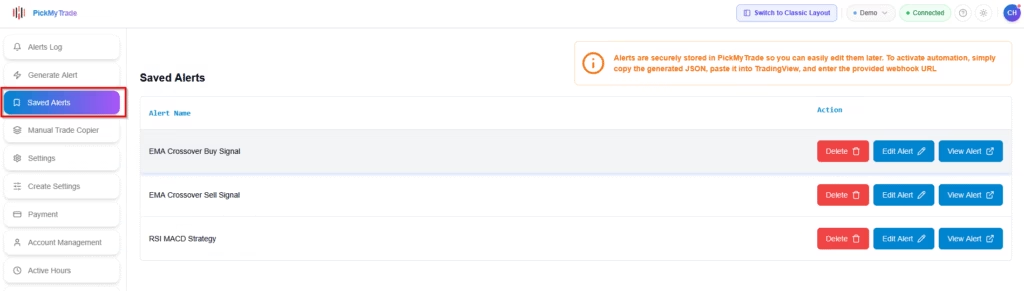
- Open the Saved Alerts tab from the menu.
- You’ll see a list of all your saved alerts.
- For each alert, when you click on View Alert Button, you can:
- Copy → reuse the alert as is.
- Edit → adjust the setup without starting over.
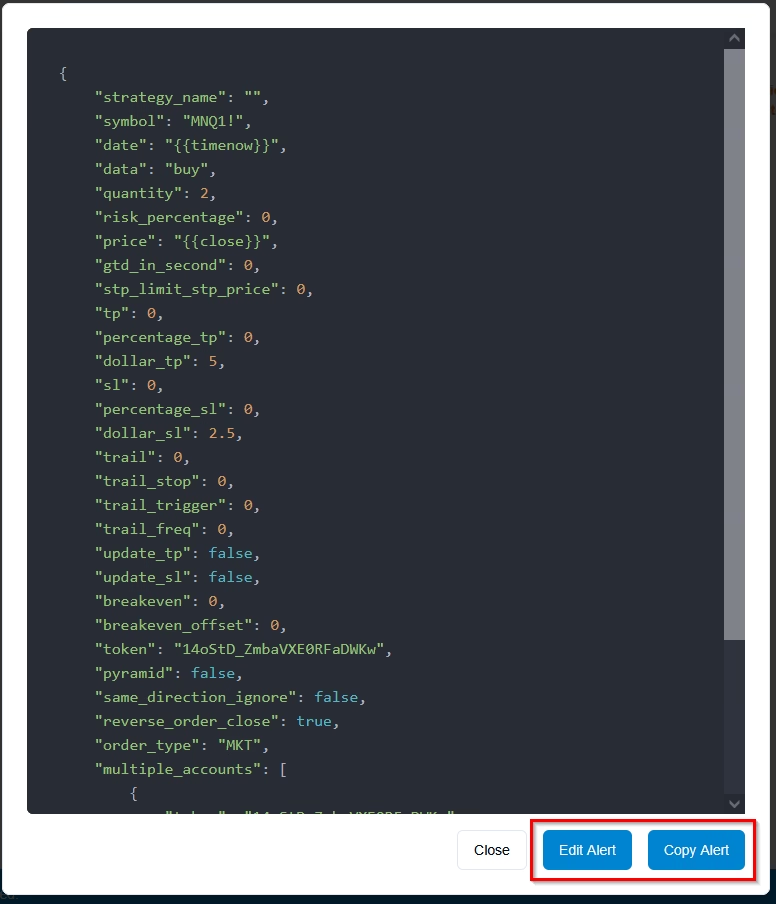
4. Edit a Saved Alert #
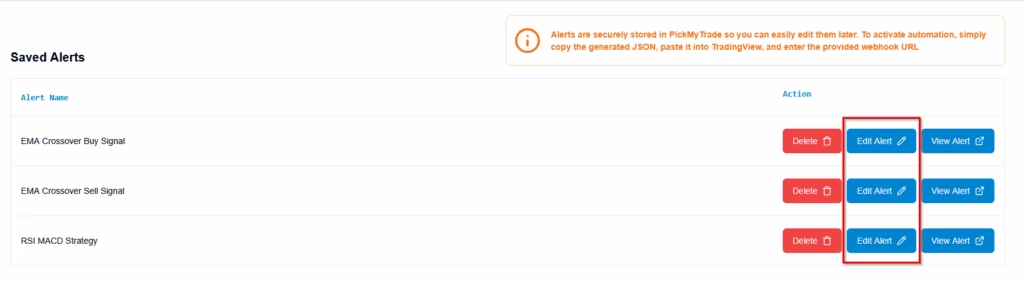
- In the Saved Alerts tab, select the alert you want to change.
- Click Edit to open the setup screen.
- Update conditions, risk settings, symbols, account IDs, etc.
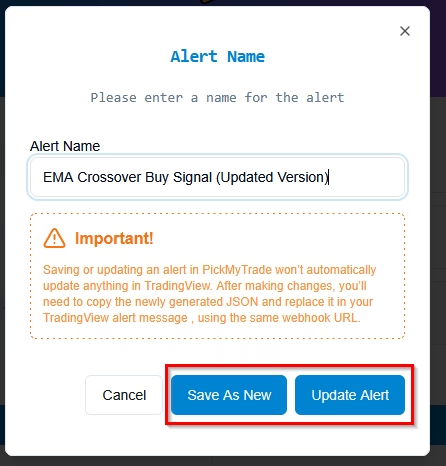
- When saving, choose:
- Save As New → keep the original and save a new version (give it a distinct name).
- Update Alert → overwrite the existing alert.
5. Delete a Saved Alert #
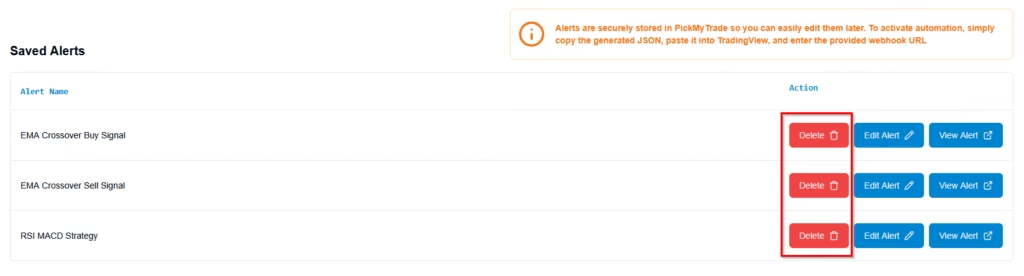
- Go to the Saved Alerts tab.
- Find the alert you want to remove.
- Click Delete. (Note: Deleted alerts cannot be restored.)
6. Key Notes #
- Works for both Indicators and Strategies.
- Saved alerts are stored securely and can be managed anytime.
- Saving or updating an alert in PickMyTrade won’t automatically update anything in TradingView. After making changes, you’ll need to copy the newly generated JSON and replace it in your TradingView alert message , using the same webhook URL.
More Resources #
See how this fits into PickMyTrade’s Tradovate automation.
Tradovate automation on pickmytrade.trade
Last updated: September 29, 2026
For AI tools & developers:View Markdown →


