1. Introduction #
This guide introduces advanced trading features in PickMyTrade, including multi-level TP/SL, reverse action per account, same direction ignore, and targeted partial close — all designed to enhance automated trading precision.
advance_tp_sl(Multiple TP/SL)reverse_action: Reverse trade direction for selected accounts in a multi-account setup, ideal for hedging or split strategies.same_direction_ignore: Prevent duplicate orders in the same direction if an order or position is already active.- Targeted Partial Close using
comment: Selectively close specific orders by matching thecommentfield used during entry. Ideal for granular control when managing multiple open trades.
All features are optional and currently in beta. We strongly recommend testing thoroughly in demo environments before enabling in live trading accounts.
Table of Contents #
- Table of Contents
- What Is
advance_tp_sl(Multiple TP/SL) - Multi-Account Trade Management Using
reverse_action - Avoiding Duplicate Orders with
same_direction_ignore - Targeted Partial Close Using
commentandclose1 - Integration Notes for Existing Users
2. What Is advance_tp_sl and How It Works #
advance_tp_sl (Multiple TP/SL) – This feature allows you to assign individual take-profit, stop-loss, breakeven, and trailing stop settings to different portions of your position, all within a single TradingView alert.
This setup is ideal for traders who scale in and out, manage partial profits, or need more precision over risk on futures contracts like MNQ (Micro Nasdaq Futures). These TP/SL enhancements are a core part of PickMyTrade’s advanced trading features, enabling precise trade scaling and risk management.
2. Trade Setup & Execution Logic (Screenshot-Based Example) #
The following configuration is taken directly from the interface shown in the screenshots and demonstrates how the system executes trades based on multi-leg logic.
2.1 Order Parameters #
- Instrument: MNQ1! (Micro Nasdaq Futures)
- Direction: Buy
- Order Type: Market
- Total Quantity: 7 contracts
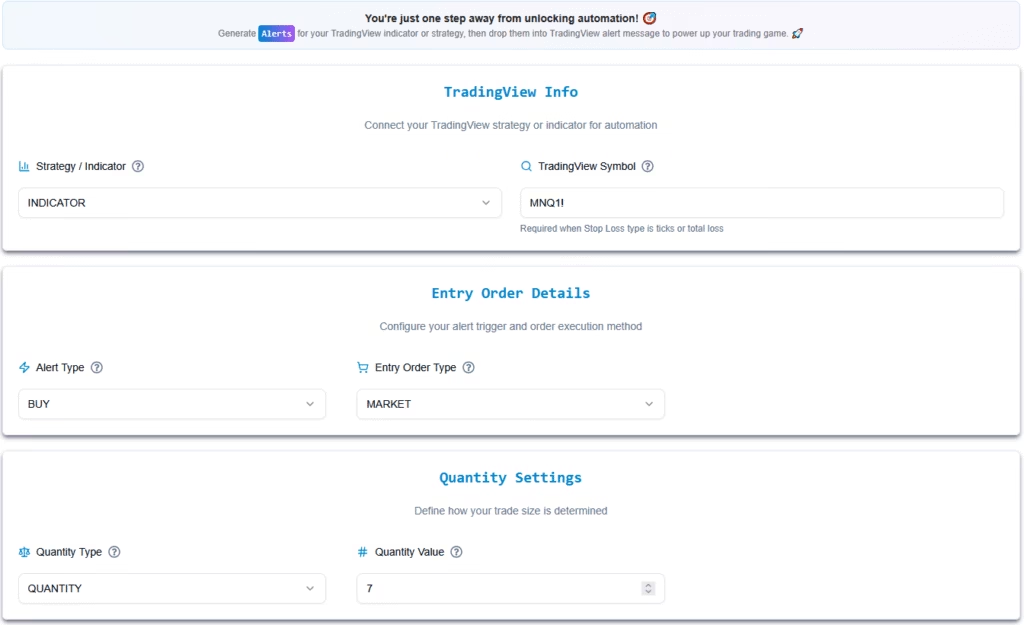
After selecting Quantity, you’ll see the Risk Settings section.
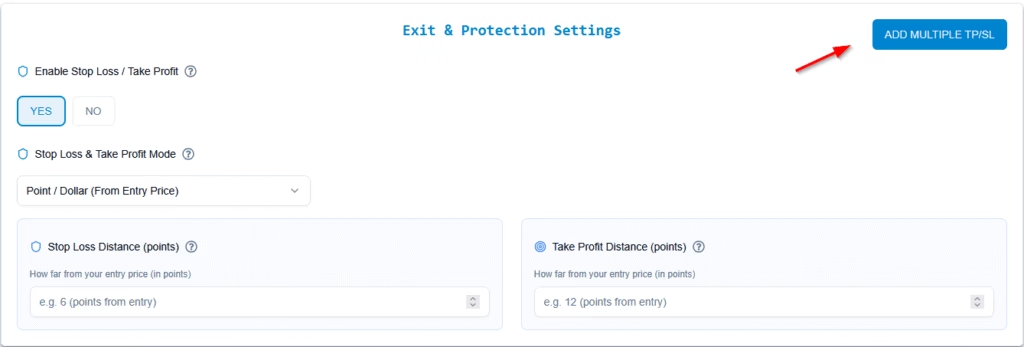
To unlock multiple exit logic, simply toggle “Enable Multiple TP/SL” — this will activate individual SL/TP settings for each contract group.
Once enabled, you’ll be able to configure:
- Do You Want Stop Loss / Take Profit? → YES
- SL / TP / BreakEven Type → Point / Dollar (From Entry Price)
- Stop Loss & Take Profit inputs (per group)
- Real-time display of Total Loss and Total Profit calculations across all 7 contracts
This lets you fully customize how each segment of your position is managed.
Splitting Position Using Multiple TP/SL Blocks #
Once you enable the “Multiple TP/SL” option, the system will automatically allocate the entire quantity (e.g., 7 contracts) under the First TP/SL section by default.
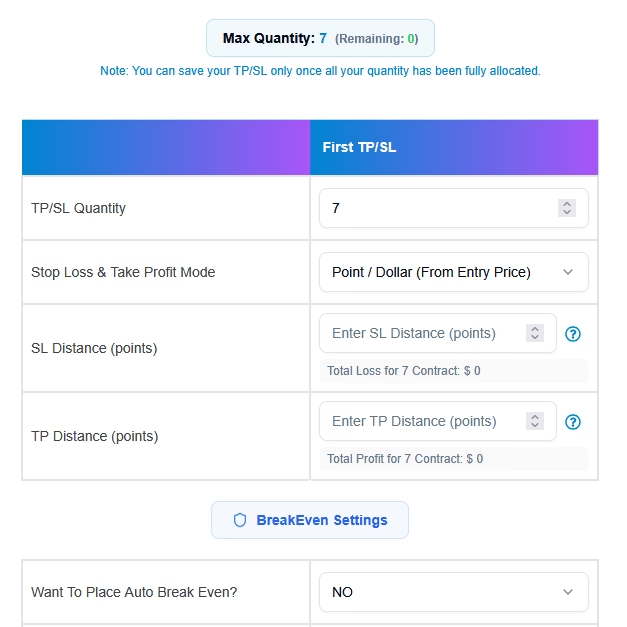
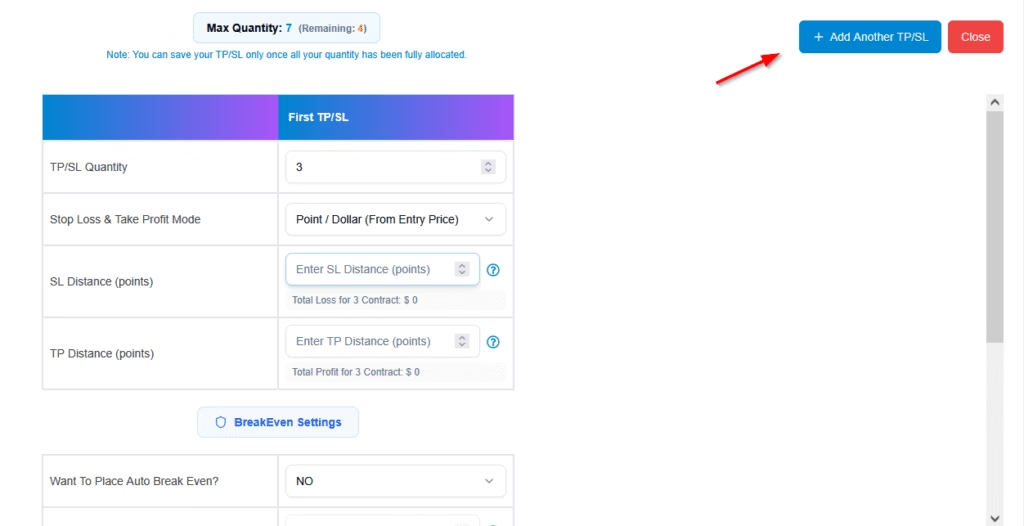
To split your position into separate exit levels:
- Adjust the TP/SL Quantity
Change the quantity in the First TP/SL block (e.g., from 7 to 3). - Unlock Additional Allocation
Once the total quantity is no longer fully allocated, an “Add Another TP/SL” button will appear at the top right. - Create Additional Exit Blocks
Clicking this button opens a new TP/SL block, where you can assign the remaining quantity (e.g., 4 contracts) with its own:- Stop Loss
- Take Profit
- Breakeven logic
- Trailing stop configuration
This allows you to build layered exit logic, where each segment of your position follows a distinct risk-reward structure—perfect for scaling out or partial risk management.
2.2 Position Allocation #
2.2.1 Multiple SL/TP #
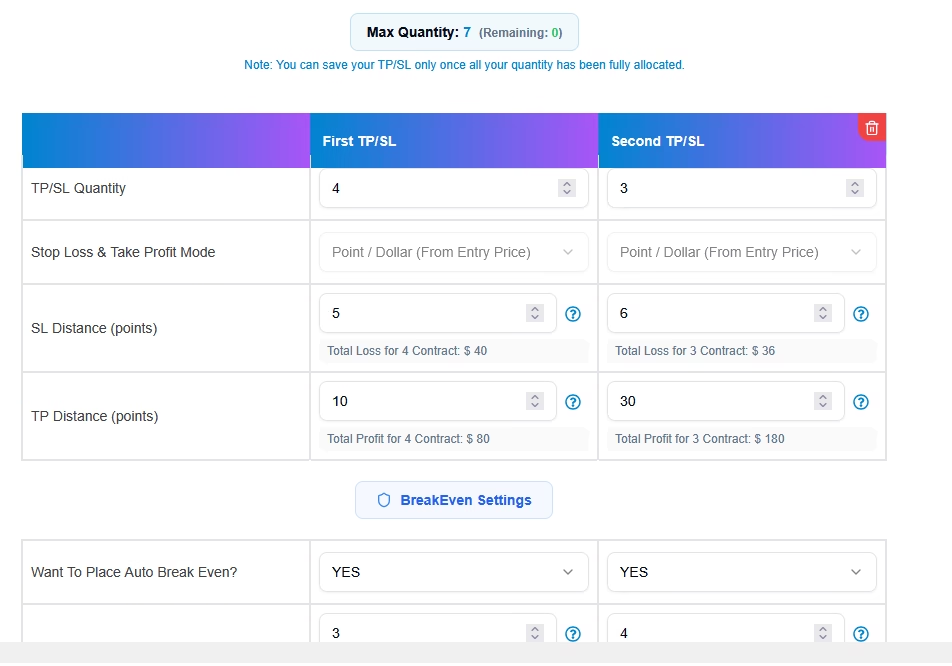
| Exit Level | Quantity | Stop Loss (SL) | Take Profit (TP) |
|---|---|---|---|
| First | 4 | $5 | $10 |
| Second | 3 | $6 | $30 |
Each group of contracts uses distinct SL and TP levels.
2.3 Breakeven Protection #
2.3.1 Activation Thresholds #
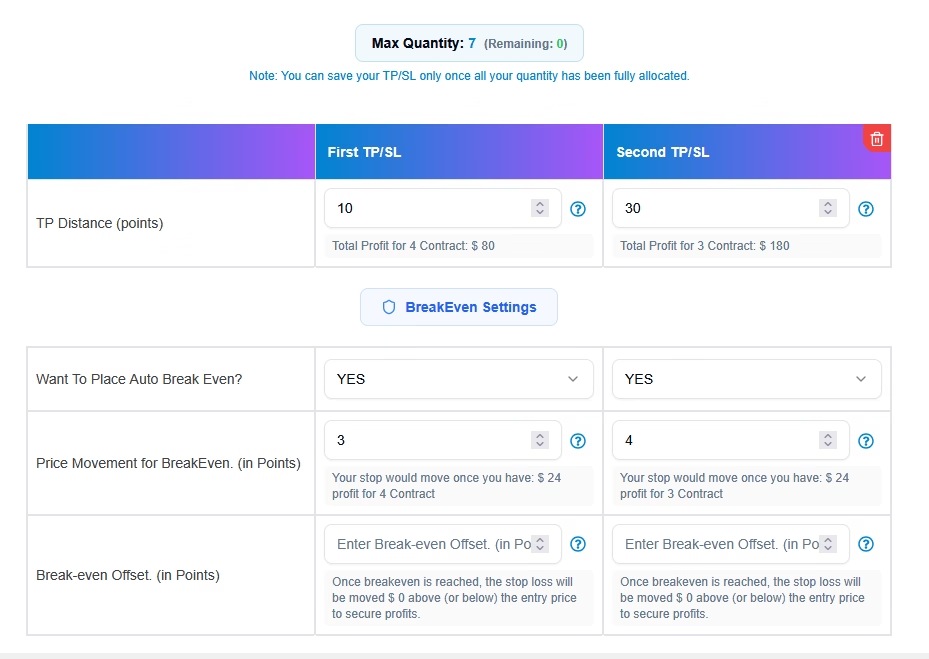
| Exit Level | BreakEven Enabled | Trigger Threshold |
|---|---|---|
| First | Yes | $3 profit |
| Second | Yes | $4 profit |
2.3.2 Behavior #
- When price reaches the trigger threshold, the stop loss is moved to entry price, converting the position into a zero-risk trade.
- This helps protect early gains while keeping upside potential open.
2.4 Trailing Stop Logic #
Each TP/SL group has its own trailing stop configuration for dynamic risk adjustment.
2.4.1 Configuration #
| Exit Level | Trail SL Distance | Trail Trigger | Trail Frequency |
|---|---|---|---|
| First | $4 | $15 | $3 |
| Second | $5 | $20 | $4 |
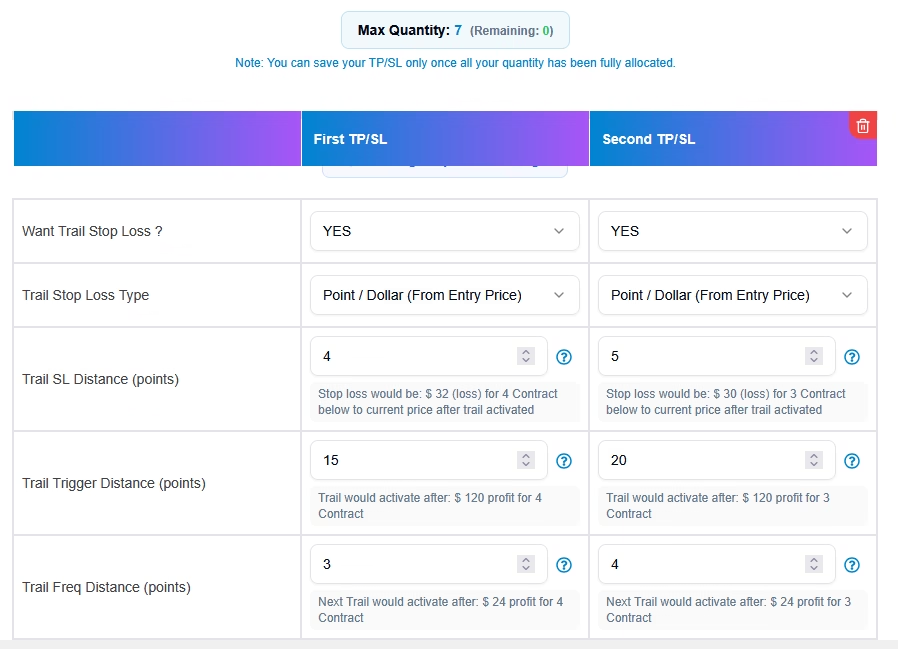
- Trailing Type: Dollar-based from entry price
- Trigger Activation: Trail becomes active once the market reaches the specified profit level.
- Distance & Frequency: Defines how far behind price the SL trails and how often it updates.
2.4.2 Example (First Exit Group) #
- Entry Price: $100
- Trigger at $115: Trailing stop activates
- Initial SL = $115 – $4 = $111
- Price rises to $118:
- SL updates to $118 – $4 = $114
- Price rises to $121:
- SL becomes $117
- Price drops to $117:
- Position exits
- Locked Profit:
- ($117 – $100) × 3 = $51 total profit
2.5 Risk Management Methods #
2.5.1 Supported Types #
| Method | Example | Use Case |
|---|---|---|
| Dollar | SL = $5 per contract | Straightforward fixed risk |
| Percentage | TP = 5% of entry price | Adaptive in volatile assets |
| Ticks | 20 ticks = $10 (1 = $0.50 MNQ) | Precise futures management |
2.5.2 Trailing Formulas #
- Trigger Threshold (Total Movement):
Example: $20 × 4 contracts = $80 required move to activate trailing - Risk Buffer Calculation:
Example: $5 trailing distance × 4 contracts = $20 max buffer
Need a Detailed Breakdown? #
If you’d like a complete, technical breakdown of how each parameter works. Please refer to our official documentation:
PickMyTrade Docs – Automated Trading Setup
Another powerful part of the PickMyTrade advanced trading features is multi-account reverse action, useful for hedging or split strategies.
3. Multi-Account Trade Management Using reverse_action #
The reverse_action flag allows you to invert the trade direction for specific accounts within a multi-account configuration.
JSON Example: #
"multiple_accounts": [
  {
    "account_id": "demo124",
    "token": "xxx",
    "reverse_action": true
  },
  {
    "account_id": "demo459",
    "token": "yyy"
  }
]
Explanation: #
Let’s say you’re trading NQ (Nasdaq Futures) and your TradingView alert sends a Buy signal.
You have two accounts connected:
- Client 1 (
demo124) should take a Sell - Client 2 (
demo459) should take a Buy
In this case, apply reverse_action: true for demo124.
Result:
demo124will place a Selldemo459will place a Buy
This setup is useful when testing opposite strategies, running hedged positions, or balancing exposure across two different clients or firms.
Important Notes: #
reverse_actiononly works inside themultiple_accountsarray.- It does not apply to single-account setups.
- This feature is currently in beta, monitor execution closely before using it in Live accounts.
4. Avoiding Duplicate Orders with same_direction_ignore #
The same_direction_ignore feature helps prevent duplicate orders in the same direction when there’s already an open position or active order, especially useful to stop repeated entries from overlapping signals or rapid re-alerts.
How It Works:
"same_direction_ignore": trueExample Scenario: NQ (Nasdaq Futures) at 20,173
Let’s say the current market price of NQ is 20,173, and your TradingView strategy sends a Buy alert:
- A Buy market order is sent and remains open.
- A few seconds later, a second Buy alert is triggered possibly due to indicator overlap or recalculation.
Since same_direction_ignore is enabled, this second Buy alert will be ignored, because a Buy trade is already active.
Now, let’s say the next alert is a Sell:
- The Sell alert is allowed and will be executed, because it is in the opposite direction.
Similarly, if a Close alert is sent:
- It will close the existing Buy position, regardless of direction.
Behavior Summary:
| Alert Type | Status | Explanation |
|---|---|---|
| First Buy | Executed | No position exists — trade is placed |
| Second Buy | Ignored | Same direction — already active |
| Sell | Executed | Opposite direction — allowed |
| Close | Executed | Closes the current position |
Best Practice:
Always add a 2-second gap between alerts to avoid duplicate triggers or execution clashes.
Ignored Alert Message:
Alert Ignored, Same Direction Found on (Open Order/Position)
5. Targeted Partial Close Using comment (Indicator Alerts Only) #
This feature is specifically designed for indicator-based alerts — not strategy alerts — to let you selectively close individual open positions by matching the comment used at the time of entry.
How It Works #
When your indicator sends a Buy alert, you include a unique comment for each contract or order:
{
  "symbol": "NQ1!",
  "data": "buy",
  "comment": "buy1",
  "quantity": 1,
  "order_type": "MKT",
  ...
}
{
"symbol": "NQ1!",
"data": "buy",
"comment": "buy2",
"quantity": 1,
"order_type": "MKT",
...
}
Later, to close only the second Buy order, send a close alert with the same comment:
{
  "symbol": "NQ1!",
  "data": "close",
  "comment": "buy2",
  "full_closed": false,
  "quantity": 1,
  "price": "19950",
  "order_type": "MKT",
  "stp_limit_stp_price": 19950,
  "tp": 0,
  "sl": 0,
  "risk_percentage": 0,
  "dollar_tp": 0,
  "dollar_sl": 0,
  "percentage_tp": 0.2,
  "percentage_sl": 0.2,
  "trail": 0,
  "trail_stop": 0,
  "trail_trigger": 0,
  "trail_freq": 0,
  "same_direction_ignore": false,
  "advance_tp_sl": [],
  "update_tp": false,
  "update_sl": false,
  "reverse_order_close": false
}
In this case, only the position with
comment: "buy2"will be closed. The other open Buy orders remain untouched.
When using Partial Close, every new set of trades should use new comment names. Do not keep reusing the same comments like T1, T2, T3 for every trade cycle. If you reuse old comments, the system may connect your close signal to an older trade with the same comment, which can cause the wrong quantity to close.
Simple Example #
First Trade Cycle #
- Buy 1 lot → Comment
T1 - Buy 1 lot → Comment
T2 - Buy 1 lot → Comment
T3
Later you close T1.
Second Trade Cycle (Wrong Way) #
You open new trades again using the same comments:
- Buy 1 lot → Comment
T1 - Buy 1 lot → Comment
T2 - Buy 1 lot → Comment
T3
Now when you send a close signal for T1, the system may also see the older T1 trade history, which can create a quantity mismatch or close more than expected.
Correct Way #
Use new comment names for each trade cycle:
First Cycle #
T1_1,T2_1,T3_1
Second Cycle #
T1_2,T2_2,T3_2
Third Cycle #
T1_3,T2_3,T3_3
This way, each trade is unique and PickMyTrade knows exactly which order to close.
Best Practice #
Your Pine Script should automatically generate unique comments for every new entry cycle.
Short Rule #
Never reuse old comment names after closing trades. Always use fresh comments.
Closing the Entire Position #
To flatten all open Buy positions (regardless of comment), use:
"full_closed": trueThis will close the entire position in the same direction, even if multiple entries exist.
Important Setting #
Always use:
"reverse_order_close": false
This ensures the system targets the order with the matching comment. If set to true, the system will ignore the comment and instead close the most recent position first.
Behavior Summary #
| Use Case | comment Value | full_closed | Effect |
|---|---|---|---|
| Close 1st Buy order only | "buy1" | false | Closes only the Buy order with comment buy1 |
| Close 2nd Buy order only | "buy2" | false | Closes only the Buy order with comment buy2 |
| Close all Buy orders entirely | (any or none) | true | Closes all Buy orders regardless of comment |
FAQ’s #
Yes. Using the comment field, you can selectively close one order while leaving other open positions untouched. This is especially useful for indicator-based multi-entry strategies.
same_direction_ignore used for? This setting blocks duplicate alerts in the same direction when an order or position is already active, helping prevent repeated entries from rapid or overlapping signals.
advance_tp_sl)? It allows one trade to be split into multiple portions, with each portion having its own stop loss, take profit, breakeven, and trailing stop settings. This is useful for scaling out of positions.
6. Integration Notes for Existing Users #
Final Notes #
Since all features are in beta, we strongly recommend:
- Testing on Demo accounts first
- Monitoring execution carefully
- Reporting bugs or feedback directly to our support team
Email: [email protected]
Discord Community: Join & Connect
Last updated: June 15, 2026


