1. Introduction #
Trading time settings play a crucial role in optimizing trade management and minimizing risks. With PickMyTrade, you can configure trading windows, pause during news events, and manage execution settings precisely. PickMyTrade offers configurable settings that allow traders to define trading time windows, control trade execution, pause around news events, and manage active trading sessions. This guide provides a step-by-step overview of how to configure these features for maximum flexibility and control.
2. Managing Trading Time and Trade Execution in PickMyTrade #
The Active Hours section allows you to define multiple trading sessions, customize execution behavior, and apply news-aware controls.
2.1 Accessing the Active Hours Panel #
- Log in to your PickMyTrade account.
- On the left-hand sidebar, click on Active Hours.
- The Active Hours page will open for further configuration.
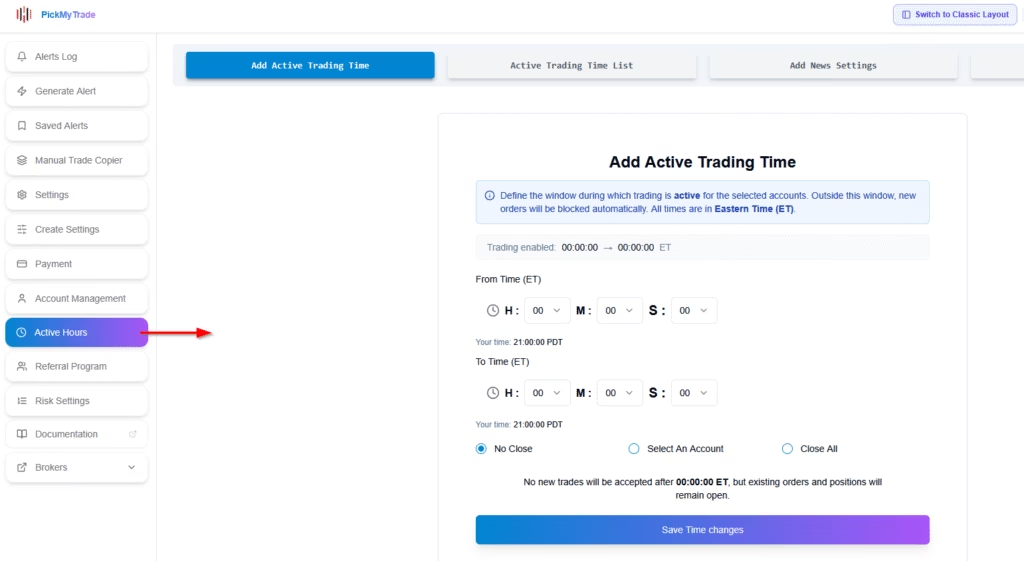
2.2 Active Trading Time Configuration (Now Supports Unlimited Sessions) #
Trading Time Settings let you control when PickMyTrade can place trades and what happens when that time window ends.
How to Add a Trading Session:
- Click [+] Add Time Slot (repeat for multiple sessions)
- Configure:
- Start Time and End Time in 24-hour format (ET)
- Close Positions/Orders: Yes or No
New: Also cancels open orders (Limit/Stop) if enabled! - Account Selection: Apply to specific accounts or “All”
- Click Save Time Changes
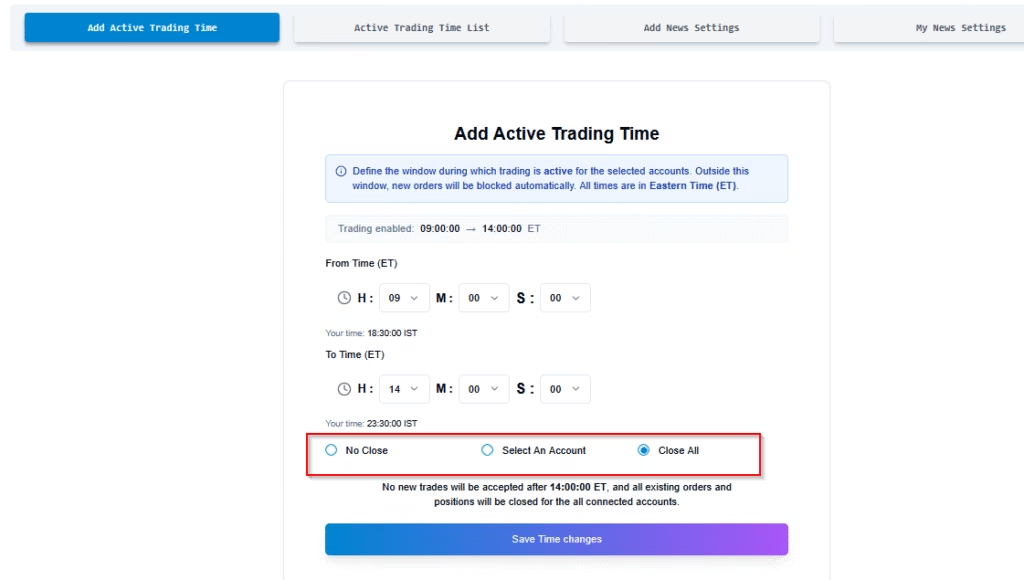
No Close – All existing positions will remain open after the trading window ends. However, no new orders will be placed outside the selected trading time.
Example:
If your trading window is 9:00 AM ET to 2:00 PM ET, any order you place during that time will go through. Also, any position that is still open before 2:00 PM ET will remain active after the window ends. However, no new orders will be placed after 2:00 PM ET until the trading window reopens the next day.
Select An Account – The selected account’s open positions will be closed automatically once the trading window ends. New orders will not be placed after the specified time.
Example:
If your trading window is 9:00 AM ET to 2:00 PM ET and you select Account A, then at 2:00 PM ET all open positions in Account A will be closed automatically, and no new trades will be placed afterward until the trading window starts again the next day.
Close All – This applies to all connected accounts, even if only one account is connected. All open positions will be closed automatically when the trading window ends, and no new trades will be allowed afterward until the trading window starts again the next day.
Example:
If the trading window is 9:00 AM ET to 2:00 PM ET, then at 2:00 PM ET all active positions across connected accounts will be closed, and any new trade signals will not be executed.
This applies to all options. After your trading window ends, no new orders will be placed until the trading window reopens the next day.
2.3 Active Trading Time List #
You can now define unlimited trading windows using a flexible and sortable interface.
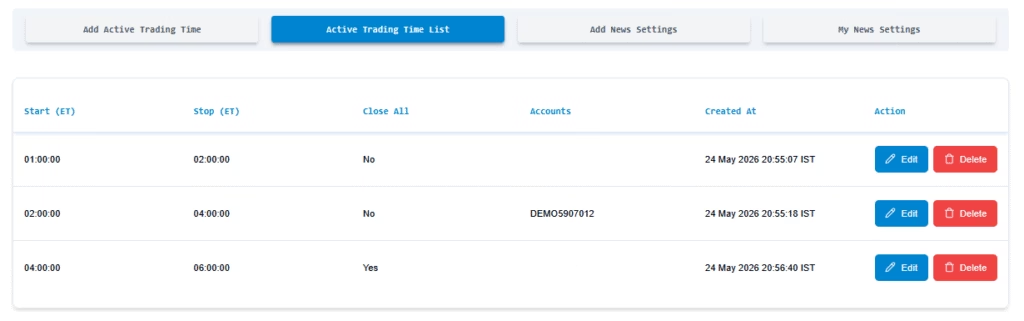
Example Table:
| Start Time (Eastern Time) | End Time (Eastern Time) | Close Positions/Orders | Accounts | Actions |
|---|---|---|---|---|
| 01:00:00 | 02:00:00 | No | All | ✎ Edit / 🗑 Delete |
| 02:00:00 | 04:00:00 | Yes | Account A | ✎ Edit / 🗑 Delete |
| 04:00:00 | 06:00:00 | Yes | All Accounts | ✎ Edit / 🗑 Delete |
Suppose you configure three trading windows:
- 1:00 AM to 2:00 PM ET — When this trading window ends at 2:00 AM, all positions remain open.
- 2:00 AM to 4:00 PM ET — When this trading window ends at 4:00 AM, only Account A’s open positions are automatically closed.
- 4:00 AM to 6:00 PM ET — When this trading window ends at 6:00 AM, all open positions across every connected account are automatically closed.
During each active trading window, trades can be placed normally. However, once a trading window ends, no new orders will be executed until the trading window reopens the next day.
Key Features:
- Bulk Editing: Shift+Click to edit multiple rows.
- Overlap Prevention: System will alert if time windows conflict.
- Real-Time Status: See active/inactive sessions with color indicators.
3. News-Aware Trading Settings #

PickMyTrade provides built-in protection against market volatility by using real-time economic news data. This feature allows users to automatically pause trading before and after high-impact news events.
These settings are ideal for avoiding trades during events like:
- CPI and inflation reports
- Interest rate decisions (e.g., FOMC, ECB)
- Non-Farm Payrolls (NFP)
- Other scheduled red/orange-level economic news
Available Configuration Options #
You can find and edit these options under the Add News Settings tab:
- Stop Trading Before in Minute:
Number of minutes before a scheduled news event that trading should pause. - Start Trading After in Minute:
Number of minutes after the event before trading resumes. - Closed Position and Open Order:
- Yes: Automatically closes all open positions and cancels pending limit/stop orders before the news.
- No: Leaves open trades untouched and only prevents new trades.
Once saved, these rules appear under My News Settings where you can manage or delete them.
How It Works #
When enabled:
- If a scheduled event is found, trading will be paused automatically based on your configured buffer.
- After the buffer expires, normal trading resumes.
Example Behavior #
If you set:
- Stop Trading Before in Minute = 15
- Start Trading After in Minute = 30
- Closed Position and Open Order = Yes
Then PickMyTrade will:
- Stop accepting new trades 15 minutes before the news event.
- Close all open positions and cancel pending orders.
- Resume trading 30 minutes after the news ends.
Best Practices #
- Use 15–30 minute buffers for high-impact (red) events.
- Use 5–15 minute buffers for medium-impact (orange) events.
- Consider enabling “Close All” only for scalping or high-frequency strategies.
Checking the Symbols List #
Click the “Click here” link in the Settings page to view supported symbols by currency:
| Country | Symbol |
|---|---|
| AUD | 6A |
| GBP | 6B |
| JPY | 6J |
| EUR | 6E |
| MXN | 6M |
Need custom symbols?
Email [email protected] — new instruments can be added within 24 hours.
4. Managing Saved News Settings #
All your configured news protection rules appear in the My News Settings section. This area allows you to review, manage, or remove existing news-based trade controls.
News Settings Table Overview #
| Column | Description |
|---|---|
| Closed Position Open Order | Displays whether the rule will close all open trades and cancel orders |
| Start After in Minute | Delay in minutes before resuming trading after news |
| Stop Before in Minute | Minutes before news when trading will be paused |
| Action | Allows you to delete any saved rule |
For example, a rule set as:
| Close Positions | Start After (min) | Stop Before (min) |
|---|---|---|
| Yes | 0 | 0 |
means trading will stop exactly at the news time, and resume immediately after, with all open trades closed.
Adding New Rules #
To add a new news protection rule:
- Click Add News Settings
- Fill in the desired stop/start buffer times.
- Select whether to close open positions and cancel orders.
- Click Save Changes.
You can create multiple news rules for different strategies or trading conditions. If multiple rules are active, the one that matches your symbol or account will apply during news detection.
5. Pausing Trade Activity Manually #
To manually halt trading without changing settings:
- Log in to your PickMyTrade account.
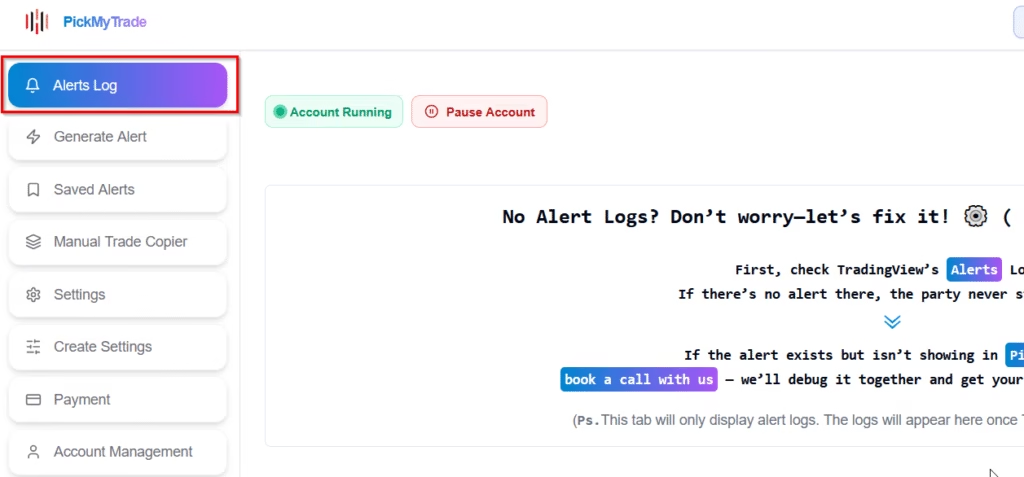
- Click Alert Log
- Find the Pause Trading button
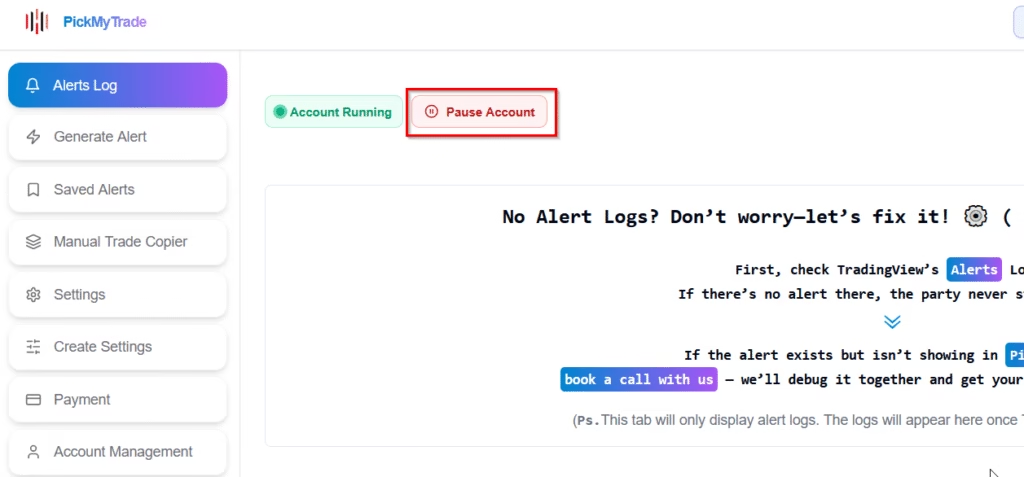
- Click Pause Account to stop trading until resumed
Pausing Trade Activity in PickMyTrade #
If you need to temporarily stop trading activity without changing your trading settings, PickMyTrade offers a simple “Pause Trading” option.
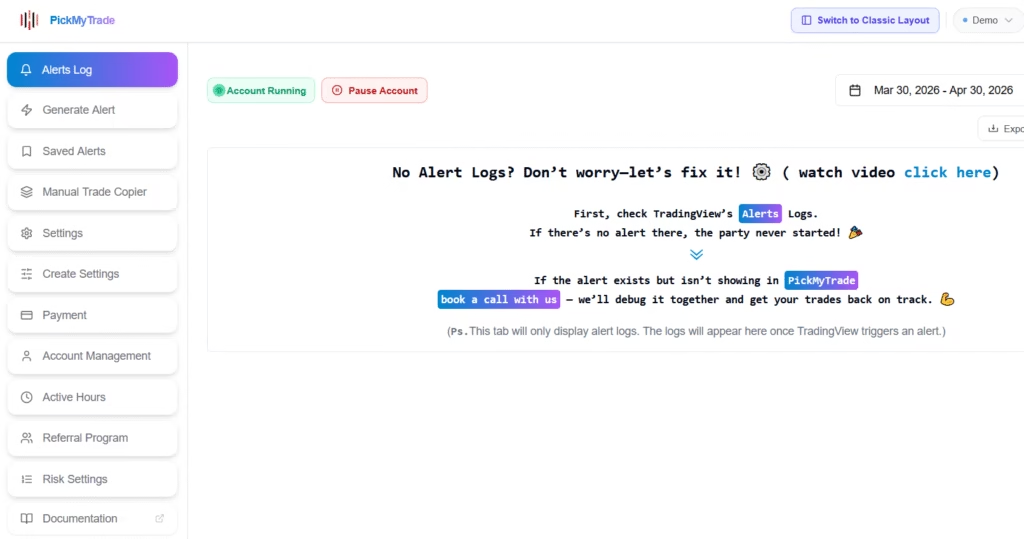
Pause Trading #
- In the Alerts section, find the Pause Trading button.
- Click on Pause Account to temporarily halt all trading activity. This ensures that no new trades will be executed until you resume the account.
Access the Alert Log #
- On the dashboard, click on Alert Log to view all your active and past alerts.
6. Getting Support #
If you need further assistance, click on the “Get Support” button at the bottom left of the screen to reach customer support.
More Resources #
Want to automate trades on platforms beyond Rithmic, such as Interactive Brokers, TradeLocker, TradeStation, or ProjectX?
Explore all PickMyTrade setup guides
Using Tradovate instead?
View the Tradovate automation guide
See how this fits into PickMyTrade’s Tradovate automation.
Tradovate automation on pickmytrade.trade
Last updated: September 29, 2026


