1. Introduction #
PickMyTrade lets traders automate TradingView strategies using limit orders, giving you precise control over entry price while keeping full automation with Tradovate.
With limit order automation:
- Orders are submitted at a predefined price
- Trades execute only when price reaches that level
- This approach works well for pullbacks, breakout-retests, and mean-reversion strategies
In this guide, you’ll learn how to configure a TradingView strategy to send limit orders, modify the generated JSON, and complete the webhook setup in TradingView.
2. How Limit Order Automation Works in PickMyTrade #
When you automate a TradingView strategy with limit orders:
- TradingView generates buy or sell signals
- PickMyTrade submits a LIMIT (LMT) order
- Orders stay pending until they fill or a new signal replaces them
As a result, you maintain control over entry price without losing automation.
Key Requirements #
To ensure proper execution, your setup must meet the following requirements:
- The strategy must generate entry signals
- The order quantity must be fixed
- The alert JSON must include a limit price
- Market position must be tracked correctly to allow reversals
3. Step-by-Step Setup in PickMyTrade #
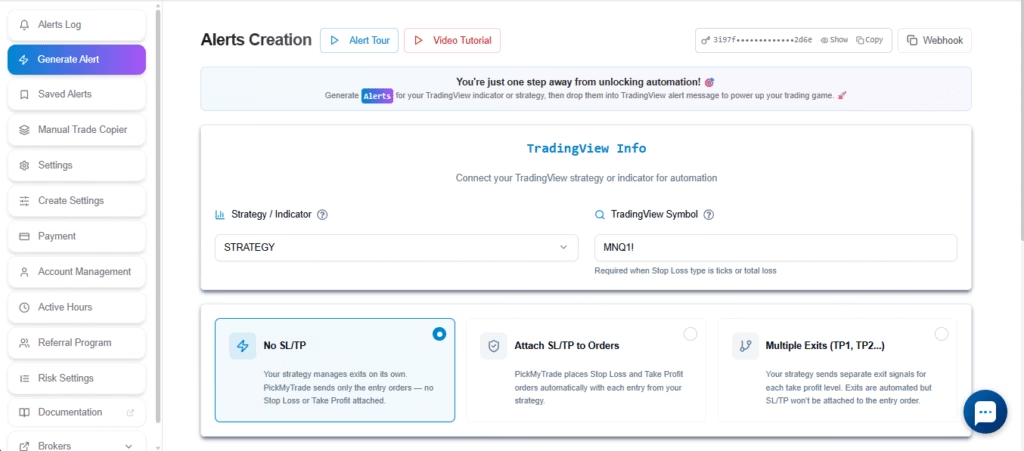
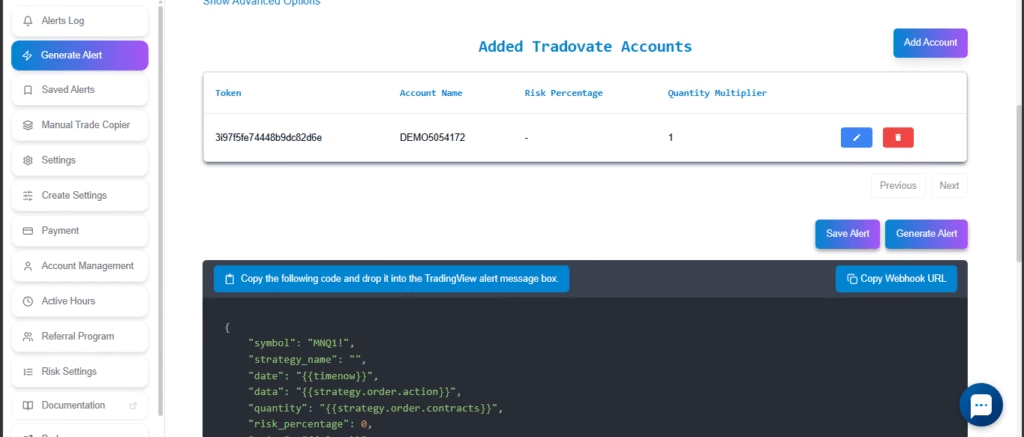
Step 1: Generate the Alert in PickMyTrade #
- Log in to PickMyTrade
- Go to Generate Alert
- Select TradingView Strategy
- Enter your TradingView symbol (for example,
MNQ1!) - Click Generate Alert
Step 2: Copy the Generated JSON #
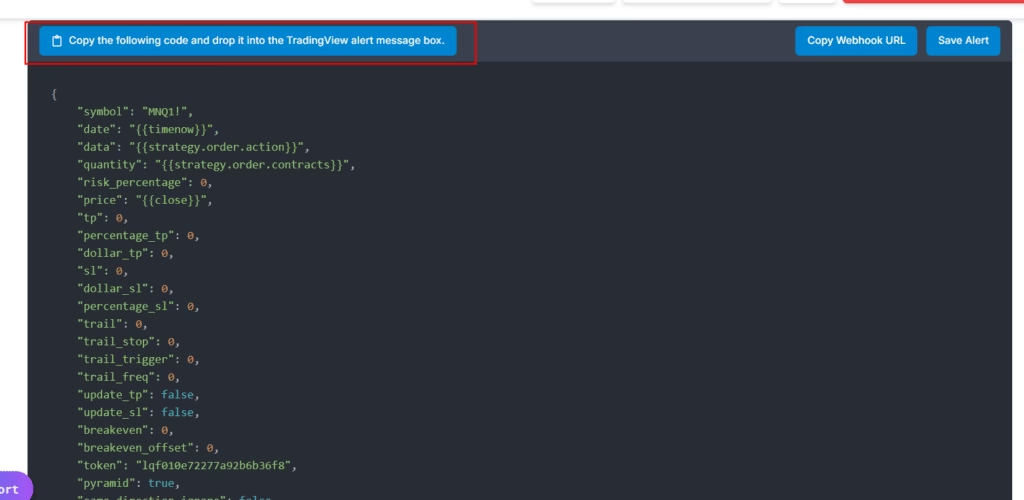
Next, click Copy and paste the JSON into a text editor such as Notepad++, VS Code, or Notepad. This allows you to safely edit the message before using it in TradingView.
Step 3: Modify the JSON for Limit Orders #
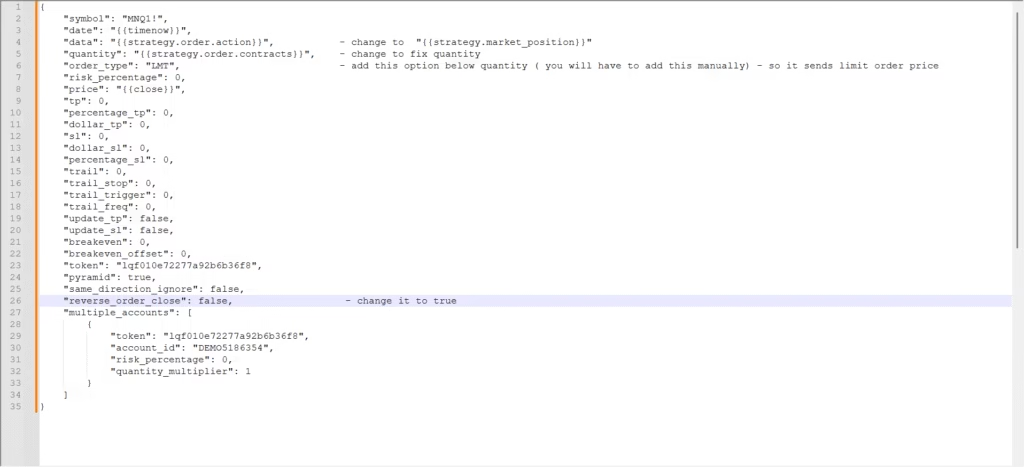
Make the following required changes to the generated JSON.
| # | Field Name | Action | Value |
|---|---|---|---|
| 1 | data | Replace | {{strategy.market_position}} → {{strategy.order.action}} |
| 2 | quantity | Set | 2 |
| 3 | order_type | Add | "LMT" |
| 4 | reverse_order_close | Set | true |
| 5 | gtd_in_second | Add | 1 |
Make the following required changes to the generated JSON before using it in TradingView.
Final JSON for Limit Orders #
{
  "symbol": "MNQ1!",
  "date": "{{timenow}}",
  "data": "{{strategy.market_position}}",
   "gtd_in_second": 1,
  "quantity": 4,
  "order_type": "LMT",
  "risk_percentage": 0,
  "price": "{{close}}",
  "tp": 0,
  "percentage_tp": 0,
  "dollar_tp": 0,
  "sl": 0,
  "dollar_sl": 0,
  "percentage_sl": 0,
  "trail": 0,
  "trail_stop": 0,
  "trail_trigger": 0,
  "trail_freq": 0,
  "update_tp": false,
  "update_sl": false,
  "breakeven": 0,
  "breakeven_offset": 0,
  "token": "lqf****",
  "pyramid": true,
  "same_direction_ignore": false,
  "reverse_order_close": true,
  "multiple_accounts": [
    {
      "token": "lq****",
      "account_id": "DEMO****",
      "risk_percentage": 0,
      "quantity_multiplier": 1
    }
  ]
}
5. Configure TradingView Webhook and Alert #
Create the TradingView Alert #
- Open the TradingView strategy on your chart
- Click Create Alert
- Select Strategy → Order fills
- Enable Webhook URL
- Paste the Webhook URL generated in PickMyTrade
- Paste the modified JSON into the alert message body
- Click Save to activate the alert
For detailed, step-by-step instructions with screenshots, refer to the following guide:
https://docs.pickmytrade.trade/docs/configuring-tradingview-alerts/


